
Live View
Overview
Real-time Testing Dashboard
Live View provides comprehensive real-time monitoring and control capabilities for all your active testing sessions. Located in the RobusTest application header, it serves as your centralized command center for managing and observing ongoing test activities across all devices.
Key Features:
- Instant access to all active sessions
- Universal device support
- Real-time monitoring
Live View transforms how you monitor and manage your testing activities by providing instant visibility into all active sessions:
Real-time Monitoring
Live Device Screens
Watch live device screens during test execution with low-latency streaming and interactive capabilities.
- Low-latency screen streaming
- Interactive device control
- Multi-screen simultaneous viewing
- Performance metrics overlay
Session Management
Complete Control
Resume, control, and terminate active sessions with comprehensive management tools.
- Session resume capabilities
- Remote device control
- Emergency session termination
- Cross-browser continuity
Universal Access
All Testing Types
Works seamlessly with manual, automation, and Hub test sessions across all device types, including TV and streaming devices.
- Manual testing sessions
- Automation test runs
- Hub-based testing
- Multi-device scenarios
- TV and streaming device sessions (Roku, Android TV)
Active Session Information
Live View displays comprehensive information about all your active testing sessions in an organized, easy-to-understand format:
Session Overview
Comprehensive Session Data
Each active session displays detailed information to help you understand the current testing state:
| Device & App Information | Session Metadata |
|---|---|
| Core Session Details: | Session Context: |
| - App Build: Current application build being tested | - Session Type: Manual, automation, or Hub test classification |
| - Device Model: Device specifications and model information | - User Details: Name of the user who initiated the session |
| - Device Serial: Unique device serial identifier. For Android devices, this corresponds to the ADB (Android Debug Bridge) serial. | - Start Time: Precise session start timestamp |
| - Device Configuration: Screen size, OS version, and capabilities | - Duration: Real-time session elapsed time |
Session Controls
Available Actions
For each active session, you can perform various control actions:
| Live Screen | Resume Session | Release Device |
|---|---|---|
| Real-time Viewing | Session Recovery | Session Termination |
| - Monitor device screen in real-time | - Resume interrupted sessions | - Terminate active sessions |
| - Interactive control capabilities | - Cross-browser continuity | - Free up device resources |
| - Multiple screen support | - Maintain test progress | - Clean session closure |
Session Status
Understanding Session States
| Session States | Device & Job-Level Alerts |
|---|---|
| Session-Level States: | Device/Job-Level Alerts: |
| - Active: Session is running normally | - Disconnected: Network connection to device lost |
| - Paused: Session is temporarily paused | - Crashed: Application or device-level failure detected |
| - Resumed: Session has been restored after a pause | - Timeout: Job has exceeded its run or idle time limit |
| - Completed: Session has ended | - Resource Low: Device resources running low |
| - Busy: Device is currently processing commands (device-level) | |
| - Waiting: Job is waiting for a script or resource (job-level) |
Note: Device and job-level alerts are surfaced from the underlying device or job layer and displayed contextually in Live View. They do not represent the session's own state.
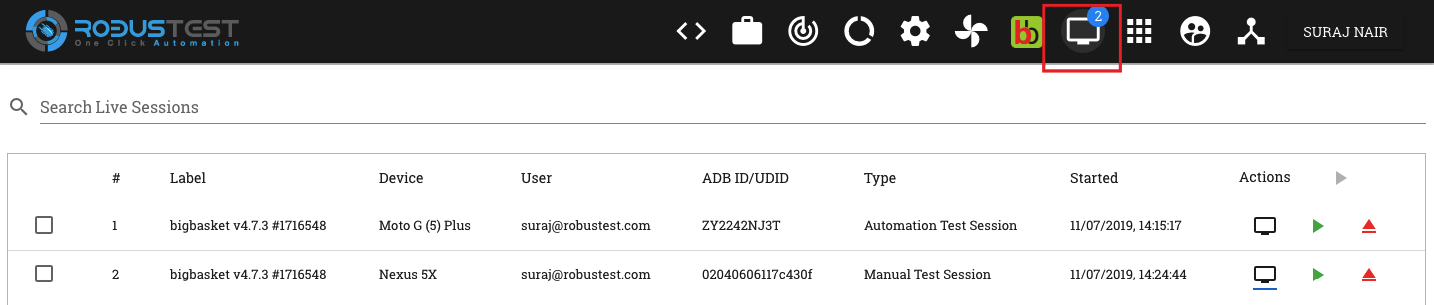
Session Control Options
Live View provides comprehensive control options for managing your active testing sessions with powerful features and flexible configurations:
Live Screen Monitoring
Real-time Device Screen Viewing
The Live Screen button (monitor icon) opens a powerful real-time device viewing experience:
Screen Viewing Features
Advanced Display Options:
- Real-time Display: Low-latency live device screen streaming
- Test Step Visibility: Watch automation test steps in real-time
- Multiple Resolutions: Adaptive screen sizing and quality
- Performance Overlay: Real-time performance metrics display
Streaming Technology Note: The streaming method used depends on device capability. Devices that support WebRTC use SCRCPY-based peer-to-peer streaming for improved interactivity. Other devices use MJPEG or Minicap-based streaming. This is determined automatically per device.
Interactive Control
Device Control Capabilities:
- Touch Interactions: Click, swipe, and gesture support
- Keyboard Input: Direct text input to device
- Device Rotation: Portrait/landscape orientation control
- Hardware Buttons: Volume, power, and navigation controls
- Clipboard Support: Copy/paste between device and computer
Session Recovery
Robust Session Continuity
The Resume Session button (green play icon) provides comprehensive session recovery capabilities:
Recovery Scenarios
When to Use Resume:
- Browser Crash Recovery: Restore sessions after browser failures
- Network Interruption: Continue after connection drops
- Device Switching: Move sessions between computers
- Collaborative Testing: Share sessions with team members
- Timeout Prevention: Extend session timeouts
Resume Benefits
Continuity Features:
- Progress Preservation: Maintain all test progress and state
- Cross-browser Support: Resume from any browser or device
- App State Maintained: Application remains in current state
- Instant Reconnection: Immediate session restoration
- Secure Handoff: Secure session transfer mechanisms
Best Practice: Always use Resume Session instead of starting new sessions when returning to interrupted tests to maintain progress and save time.
Device Release
Efficient Resource Management
The Release Device button provides clean session termination and resource optimization:
When to Release
Release Scenarios:
- Testing Completion: Normal end of testing session
- Emergency Release: Immediate device liberation needed
- Resource Optimization: Free devices for team members
- Session Cleanup: Remove inactive or stuck sessions
- Device Reset: Prepare device for fresh testing
Release Benefits
Optimization Advantages:
- Quick Liberation: Immediate device availability
- Cost Efficiency: Optimize device usage costs
- Team Sharing: Make devices available to colleagues
- Resource Cycling: Prevent device resource exhaustion
- Usage Analytics: Better resource utilization tracking
Important: Device release immediately terminates the session. Ensure you've saved all necessary test artifacts before releasing.
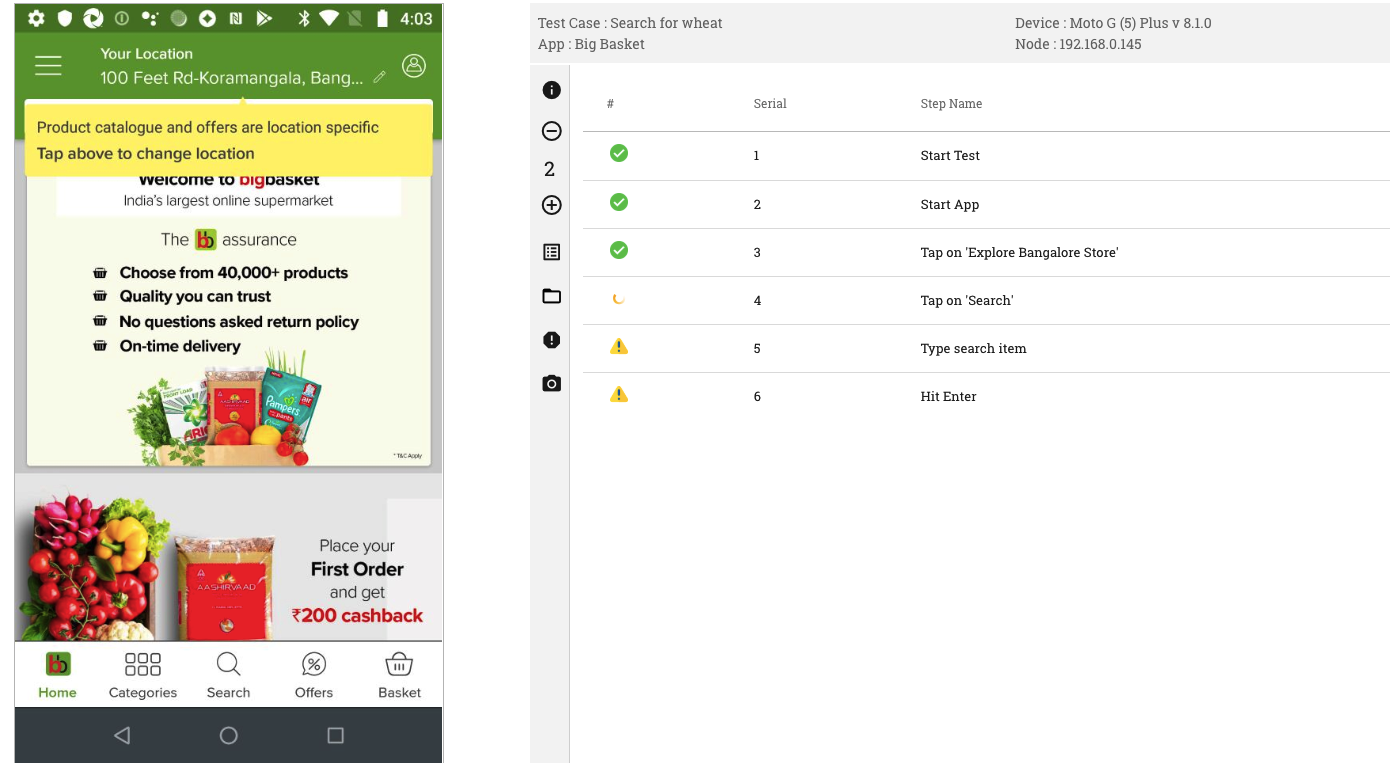
Multi-Device Monitoring
Live View's multi-device monitoring capabilities enable comprehensive testing scenarios across multiple devices simultaneously:
Parallel Monitoring
Simultaneous Device Screen Viewing
Monitor multiple devices in real-time with advanced multi-screen capabilities:
| Multi-Screen Features | Performance Optimization |
|---|---|
| Advanced Viewing Options: | Efficient Resource Usage: |
| - Multiple Windows: Open up to 4 device screens simultaneously (recommended) | - Memory Optimization: Intelligent resource management |
| - Grid Layout: Organize screens in customizable grid patterns | - Bandwidth Efficiency: Adaptive streaming quality |
| - Synchronized Monitoring: Coordinated test execution viewing | - GPU Acceleration: Hardware-accelerated rendering |
| - Focus Mode: Highlight primary device while monitoring others | - Latency Reduction: Minimized delay across all screens |
| - Responsive Scaling: Adaptive screen sizing for optimal viewing | - Power Management: Optimized for extended monitoring sessions |
Tip: Starting with 2–4 devices is recommended. Opening more than 4 concurrent screens may cause performance degradation depending on your network and system resources.
Setup & Configuration
Easy Multi-Device Setup
Quick Configuration Process:
Step 1: Session Selection
- Select multiple active sessions from the Live View dashboard
- Use checkboxes to choose desired devices for monitoring
- Verify device compatibility and availability
Step 2: Screen Layout
- Click "Start Multiplexing" to initialize multi-device view
- Arrange windows according to your monitoring preferences
- Configure screen resolution and quality settings
Step 3: Active Monitoring
- Begin real-time monitoring across all selected devices
- Use synchronized controls for coordinated testing
- Monitor performance metrics across all devices
Step 4: Session Management
- Control individual devices or all devices simultaneously
- Save screenshots and recordings from multiple devices
- End sessions individually or as a group
Use Cases & Benefits
Powerful Testing Scenarios
| Testing Scenarios | Strategic Benefits |
|---|---|
| Multi-Device Applications: | Monitoring Advantages: |
| - Cross-Device Testing: Test app behavior across different devices | - Time Efficiency: Monitor multiple tests simultaneously |
| - Communication Apps: Monitor chat, call, and messaging features | - Comparative Analysis: Side-by-side behavior comparison |
| - Multiplayer Games: Test real-time multiplayer interactions | - Team Collaboration: Share multi-device views with team |
| - Synchronization: Verify data sync across multiple devices | - Comprehensive Coverage: Test across device ecosystem |
| - Performance Comparison: Compare app performance across devices | - Centralized Control: Manage all devices from single interface |
Performance & Optimization
System Requirements & Best Practices
| Performance Considerations | Optimization Tips |
|---|---|
| Resource Requirements: | Best Practices: |
| - Bandwidth Usage: Multiple screens increase network consumption | - Limit Concurrent Screens: Start with 2-4 devices maximum |
| - System Resources: Monitor CPU and memory usage carefully | - Adjust Quality: Reduce streaming quality if performance lags |
| - Screen Resolution: Optimize resolution for performance | - Monitor Layout: Use efficient screen arrangements |
| - Network Latency: Consider network conditions for smooth streaming | - Session Duration: Limit extended multi-device sessions |
| - Battery Impact: Extended monitoring affects device battery | - Rotate Devices: Periodically refresh device connections |
TV & Non-Mobile Device Support
Live View supports sessions on TV and streaming devices in addition to standard mobile devices. This includes:
- Roku streaming devices
- Android TV and other television platforms
Sessions on these devices appear in Live View alongside mobile sessions and support the same core controls (Live Screen, Resume, Release). Note that touch-based interactive control is not available for TV devices; navigation is handled via remote control emulation where supported.
Best Practices
Maximize your Live View experience with these proven strategies and recommendations:
Session Management
Optimal Session Control
| Resource Management | Backup & Recovery |
|---|---|
| Efficient Resource Usage: | Session Continuity: |
| - Regular Cleanup: Release unused sessions every 30 minutes | - Progress Saving: Save test progress at regular intervals |
| - Session Naming: Use descriptive, time-stamped session names | - Resume Planning: Keep session URLs for easy recovery |
| - Time Management: Monitor session duration and set alerts | - Browser Backup: Test resume capability across browsers |
| - Rotation Strategy: Rotate devices to prevent resource exhaustion | - Team Handoff: Document session details for team members |
| - Usage Tracking: Monitor device utilization patterns | - Device Backup: Have alternate devices ready if needed |
Multi-Device Strategy
Effective Multi-Device Monitoring
| Device Selection | Screen Organization |
|---|---|
| Strategic Device Choice: | Optimal Layout Management: |
| - Target Representation: Choose devices matching your user base | - Grid Arrangement: Organize screens in logical grid patterns |
| - Coverage Strategy: Test across different screen sizes and OS versions | - Priority Focus: Place critical devices in primary viewing area |
| - Performance Tiers: Include high, medium, and low-performance devices | - Screen Sizing: Optimize individual screen sizes for visibility |
| - Geographic Distribution: Consider devices from different regions | - Quick Access: Keep session controls easily accessible |
| - Update Cycles: Test on devices with different OS update schedules | - Eye Movement: Minimize eye strain with efficient layouts |
Troubleshooting
Common Issues & Solutions
| Connection Issues | Performance Issues |
|---|---|
| Network & Connectivity: | System Optimization: |
| - Network Check: Verify stable internet connection | - Screen Reduction: Reduce concurrent screens if performance lags |
| - Browser Refresh: Refresh browser if screens don't load | - Resolution Adjustment: Lower screen resolution for better performance |
| - Browser Update: Use latest browser versions | - Resource Monitoring: Monitor CPU and memory usage |
| - Cache Clear: Clear browser cache for persistent issues | - Device Rotation: Rotate devices to prevent overload |
| - Bandwidth Test: Ensure sufficient bandwidth for multiple streams | - Session Limits: Set time limits for extended sessions |
Advanced Tips
Expert-Level Optimization
| Performance Maximization | Integration Strategies |
|---|---|
| Advanced Techniques: | Workflow Integration: |
| - Focused Monitoring: Use Live View for critical test phases only | - CI/CD Integration: Integrate Live View with automated workflows |
| - Metrics Integration: Combine Live View with performance monitoring | - Test Management: Link Live View sessions with test case management |
| - Automated Alerts: Set up alerts for session issues | - Reporting Integration: Include Live View data in test reports |
| - Team Protocols: Establish team protocols for Live View usage | - Collaboration Tools: Integrate with team communication platforms |
| - Usage Analytics: Track Live View usage patterns for optimization | - Recording Strategy: Develop systematic recording practices |
Pro Tip
Efficient Monitoring Strategy: Use Live View strategically during critical test phases rather than continuous monitoring to optimize resource usage and maintain system performance.
Quick Start Guide
For Multi-Device Monitoring:
- Select Sessions: Enable checkboxes for desired live session entries (minimum 2 required)
- Start Multiplexing: Click the 'Start Multiplexing' button
- Monitor Devices: View and control selected devices in multi-device mode
- Manage Sessions: Use individual or coordinated controls as needed
Related Documentation
See Also:
- Manual Session - Manual testing session management and workflows
- RobusTest Hub - Hub-based testing and advanced monitoring capabilities
- Multi-Device Testing - Multi-device testing strategies and best practices