
Traffic Modifier
The Traffic Modifier lets you change how your app's network traffic behaves during a manual session — without touching the app's code, rebuilding it, or changing your backend. You define rules (for example, "make the checkout call return a 500"), group them into a ruleset, and attach the ruleset when you start a session (or later, from the Network view). From that moment, matching HTTP/HTTPS traffic from the device is rewritten, replaced, or paused for you to edit by hand.
This page walks through the whole workflow, from creating your first rule to verifying its effect on live traffic.
What you can do
| Goal | Use | Example |
|---|---|---|
| Simulate a server error | Rewrite — change the status code | Make POST /v1/checkout return 500 |
| Test edge-case data without backend changes | Rewrite — patch fields in a real response | Set user.tier to "premium" |
| Test an API that doesn't exist yet | Replace — answer with a canned body | Serve a fake /v1/config with a new feature flag on |
| Simulate a slow network or slow API | Rewrite — add a delay | Delay image responses by 2 seconds |
| Change what the app asks for | Rewrite — change the path or query parameters | Request 480p video segments instead of 1080p, or set ?plan=pro |
| Inspect or hand-edit a call live | Breakpoint — pause the call | Hold the checkout response, change the amount, send it on |
| Check a rule matches before changing anything | None — match and count only | Confirm a host/path pattern catches the right calls |
How it fits together
The Traffic Modifier has four building blocks, all stored at project level and shared by everyone in the project:
| Building block | What it is |
|---|---|
| Rule | One "when this traffic is seen, do this" instruction: a match (which calls), a direction (request or response), and an action. |
| Ruleset | An ordered list of rules. The order is the order the rules run in. This is what you attach to a session. |
| Fixture | A file (JSON, image, video segment, anything) that a Replace rule can serve as its response body. |
| Descriptor | A compiled protobuf descriptor that lets a rule read and edit protobuf bodies. (Advanced — see Protobuf bodies.) |
The workflow is always the same:
- Create rules in the project library.
- Group them into a ruleset and put them in the order you want.
- Pick the ruleset when you start a manual session (or apply it later from the Network view).
- Watch the Network view to see which calls were modified, and release any paused calls.
Good to know: A session runs on a copy of the ruleset taken when the session starts. Editing a rule or ruleset afterward never changes a session that is already running by itself. The changes reach a session when you start a new one, or when you Re-apply the ruleset from the Network view. See Changing rules while testing.
Before you start
Supported sessions. Manual sessions on Android and iOS devices that are Proxy ready. Right now, it can't be attached to automated test runs.
A proxy-ready device. You can only modify traffic on a device that has a network proxy recorded. Such a device is called Proxy ready. Here is where you can see it:
- Regular users: when you select a device and start a manual session, the Confirm manual session configuration window has a Traffic Modifier section. A green Proxy ready label there means you can pick a ruleset. If the device has no proxy, the section says No traffic modification on this device — pick a device marked Proxy ready, or ask an admin to set one up.
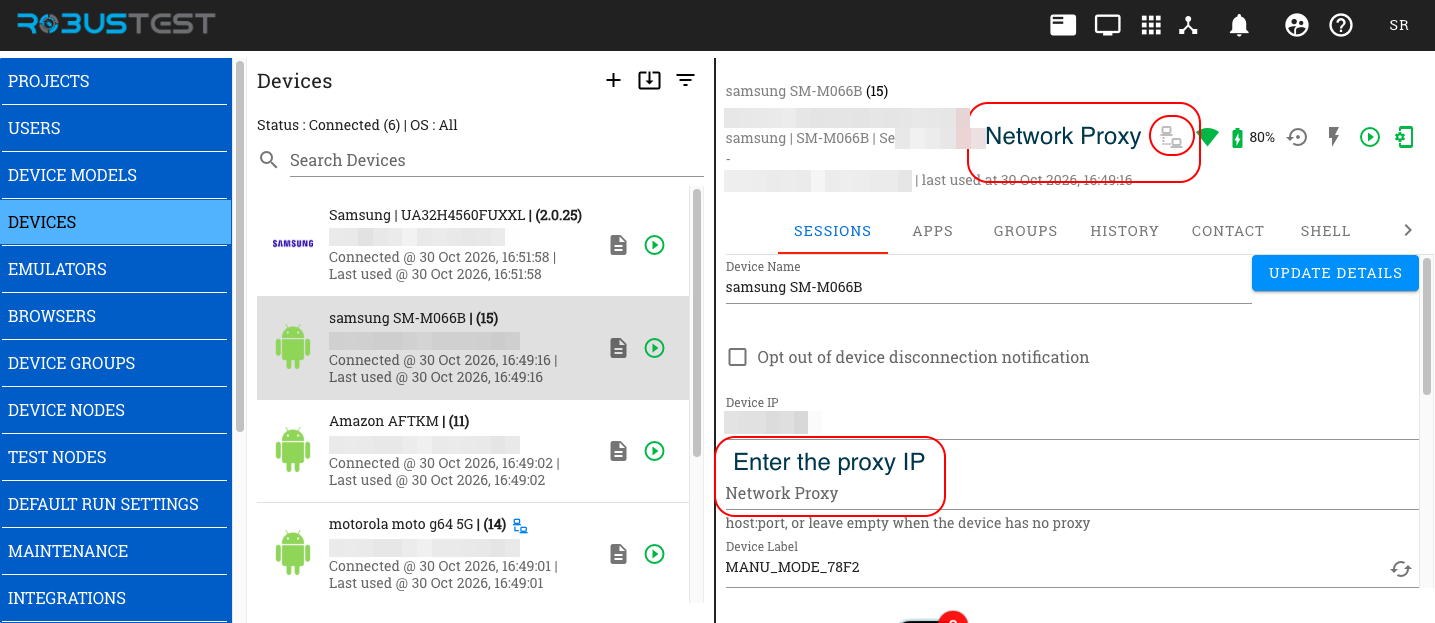
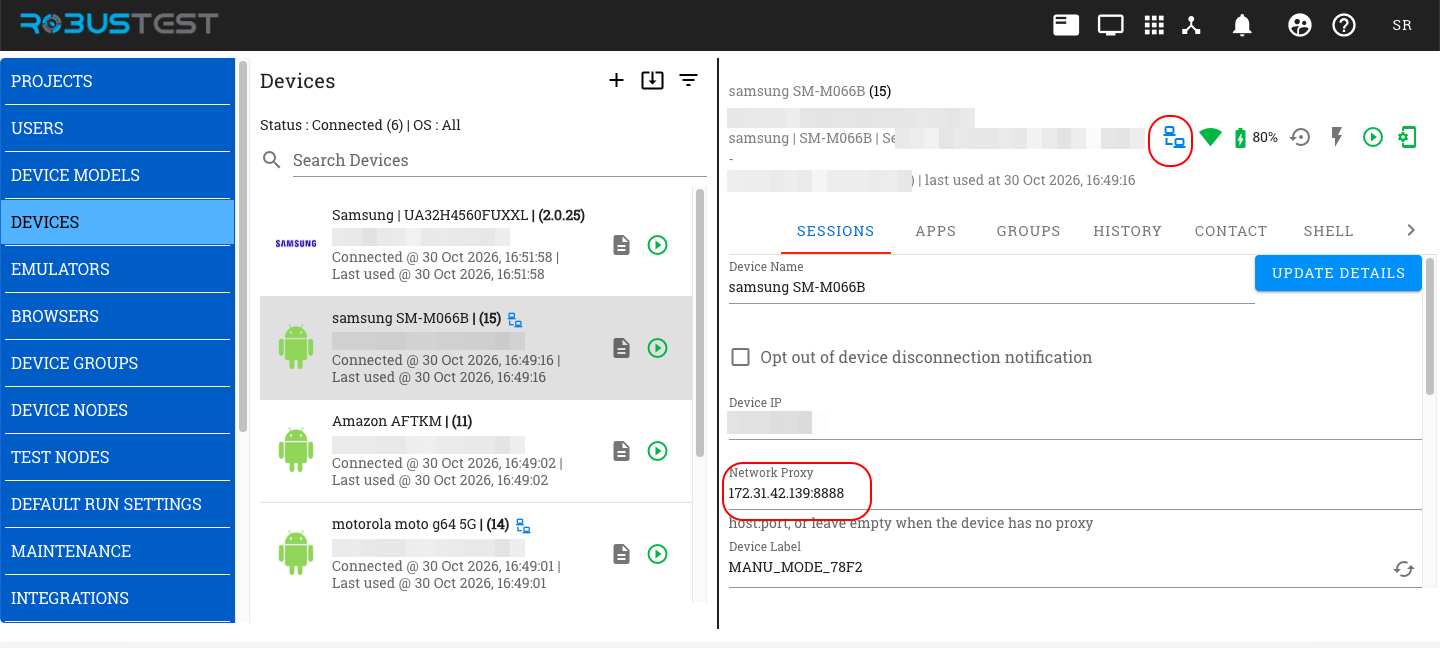
- Admins: in the Admin Console, click Devices in the left menu. In the device list, a device with a recorded proxy shows a small blue network icon next to its name. Select a device to see its details: the network proxy icon next to the status icons shows the recorded address (blue icon), or No proxy recorded (grey icon). The steps to set it are below.
For administrators — marking a device proxy-ready.
- In the Admin Console, click Devices and select the device. Hover the network proxy icon and click Set it in Settings, or scroll to the Network Proxy field in the device details.
- In Network Proxy, enter the proxy as
host:port, for example10.0.0.25:8888. Leave it empty if the device has no proxy. - Click Update Details.
The address is checked when you save: it must be host:port, with a port from 1 to 65535.
Before — no proxy recorded:
After — proxy recorded and saved. The icon turns blue, and the same icon now appears next to the device's name in the list:
Important: The Network Proxy field only records which proxy the device uses. It does not configure the device. Setting the device's Wi-Fi proxy and installing the proxy certificate on the device are separate steps in your proxy setup. A device with a recorded proxy that isn't actually set up will show as Proxy ready, but its traffic won't be modified.
HTTPS traffic. To read or change HTTPS calls, the device must trust the proxy's certificate; your administrator handles this when the proxy is set up. Some limits are worth knowing:
- Apps that use certificate pinning reject proxied HTTPS traffic, so their calls can't be modified. This is the most common blocker for production apps.
- Some apps don't trust certificates the user installs (this affects some Android apps; on iOS the proxy certificate must also be switched on under Settings → General → About → Certificate Trust Settings). Their HTTPS calls can't be modified either.
- Some apps ignore the device's proxy setting and send traffic around the proxy, so it can't be modified.
If a rule never fires, test the same call from a browser on the device. That tells an app limitation apart from a rule mistake.
Permissions.
| Role | What you can do |
|---|---|
| Project member | View, create, edit and delete rules, rulesets and fixtures. Attach a ruleset when starting a session. |
| Project admin | Everything a member can do, plus set a device's network proxy. |
Quick start: force a checkout failure in five minutes
This walkthrough creates one rule that makes your checkout call return a 500, and tests it.
-
Open the library. On your project's page, click the Traffic Modifier tile (in the row of tiles at the bottom).
-
Create the rule. Click New rule and fill in:
- Name:
Force checkout to 500 - Match → Request: method
POST, hostapi.example.com, path/v1/checkout - Fires on: The response, on its way back
- What it does: Rewrite → turn on Change the status code and enter
500
Click Save rule.
- Name:
-
Create a ruleset. In the library, click New ruleset, name it
Checkout failure, and click Create ruleset. -
Add the rule to the ruleset. In the Add from the library panel on the right, click the + next to
Force checkout to 500, then click Save. -
Start a session. Start a manual session on a Proxy ready device. In the start window, set Traffic Modifier → Ruleset to
Checkout failure. -
Test. In the session, trigger checkout in your app. Click the globe icon, open the Network view in a new tab, and check that the checkout call is marked as modified and shows
500.
The rest of this page explains each step in detail.
1. Open the Traffic Modifier library
On your project's page, click Traffic Modifier in the row of tiles at the bottom.

The library opens. Use New rule and New ruleset at the top right to create items. It has five tabs:
| Tab | Contents |
|---|---|
| Rules | Every rule in the project, with what it does, what it matches, which rulesets use it, and how often it fired in the last 7 days (Hits · 7d). Filter by action or host, search by name, key, host or path, or show only Unused rules. |
| Rulesets | Every ruleset, with its rule count, action mix, number of live sessions using it, and last update. |
| Fixtures | Files that Replace rules can serve. |
| Descriptors | Protobuf descriptors. |
| Activity | Recent sessions that attached one of the project's rulesets: which ruleset and version, who applied it, when, and whether the session is still active. |
2. Create a rule
From the Rules tab click New rule (top right, highlighted below). The rule builder is a single form with a live preview on the right.
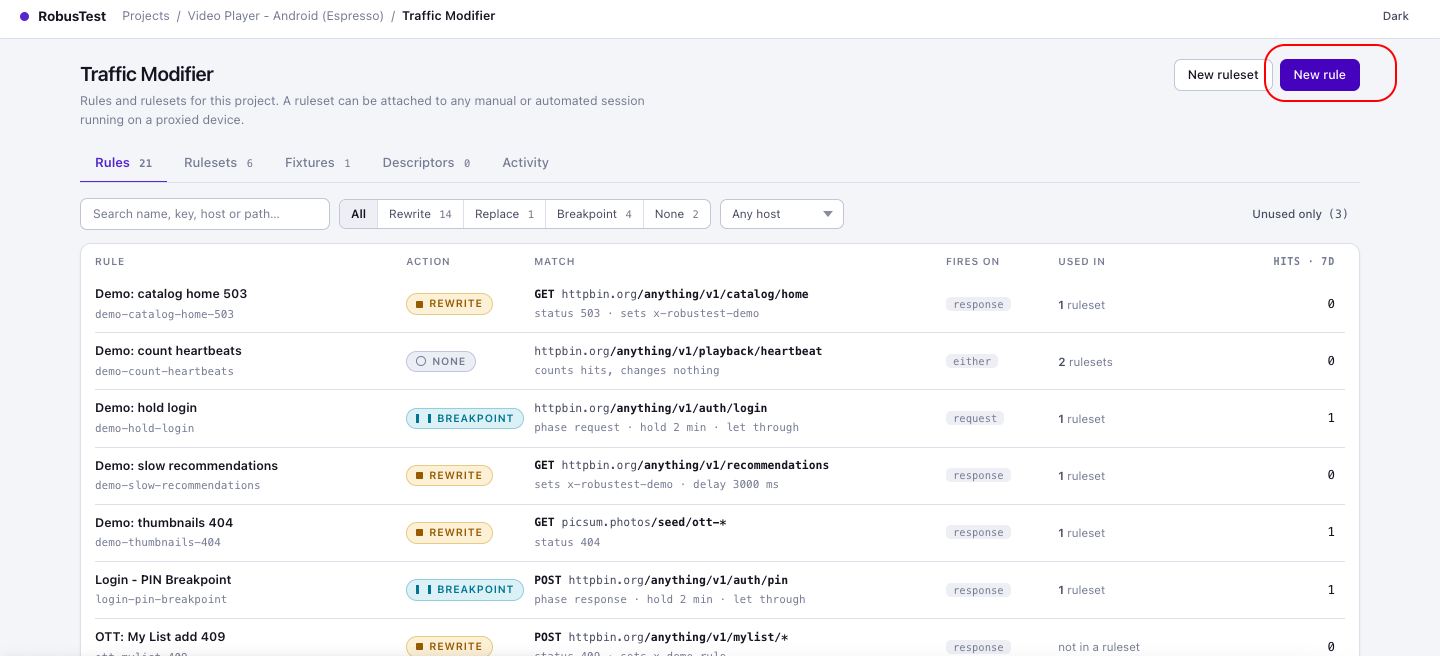
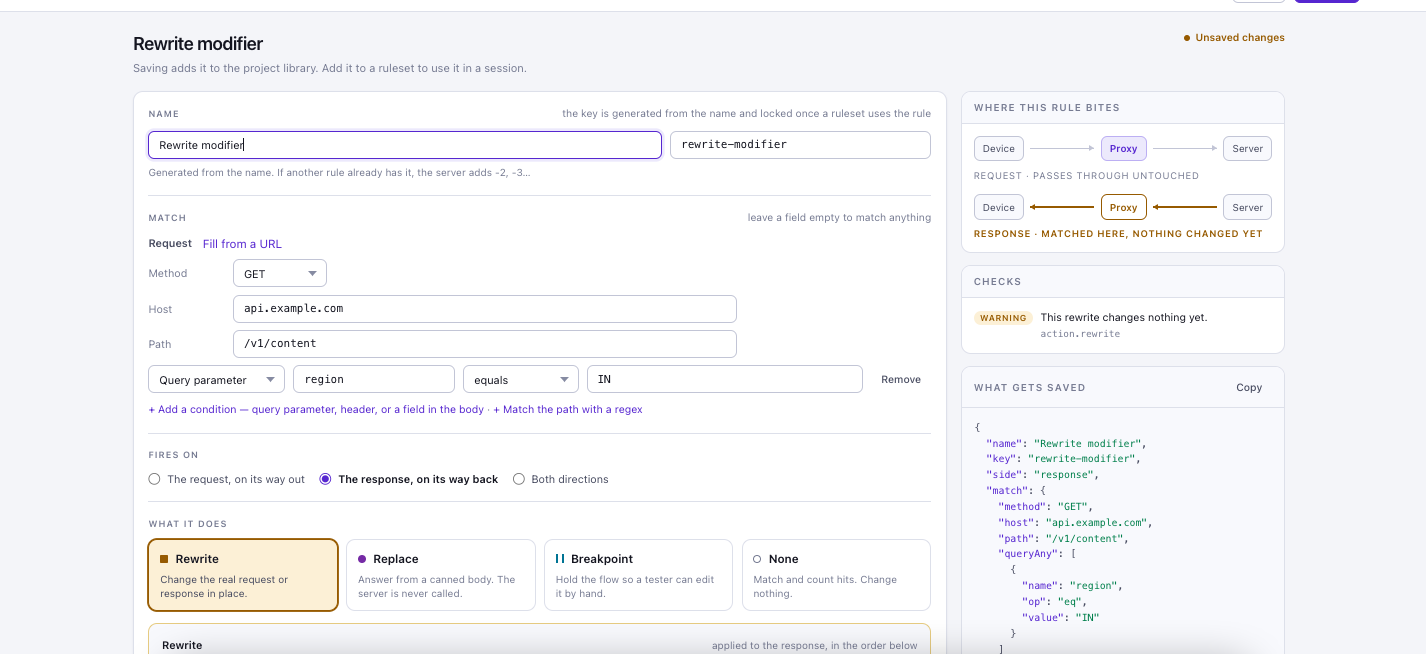
A new rule starts with Fires on set to The response, on its way back and Rewrite chosen.
A rule has no priority or on/off switch of its own. Order and enabled state belong to the ruleset the rule sits in, so one rule can be used in several rulesets with different settings.
Name and key
Give the rule a descriptive Name. A key (letters, digits, - and _, up to 64 characters) is generated from the name and shown next to it. The key identifies the rule in the Network view and in activity records. It locks once any ruleset uses the rule, so rename the rule freely, but choose the key deliberately if you want a specific one.
Match: which calls does the rule apply to?
Every condition you set must hold for the rule to apply. Leave a field empty to match anything.
| Field | What to enter | Notes |
|---|---|---|
| Method | Any, GET, POST, … |
|
| Host | api.example.com or *.cdn.example.net |
A bare host name or wildcard — no https://, port or path. |
| Path | /v1/checkout or /v1/users/* |
Wildcard match against the path, without the query string. |
| Path regex (optional — click + Match the path with a regex) | \.(m3u8|ts)$ |
Matched against the path and query string. |
Click + Add a condition for finer matching:
| Condition on | Compare with | Behavior |
|---|---|---|
| Header | equals · matches regex · is present | Checks the request headers. |
| Query parameter | equals · matches regex · is present | If you add several, choose All of these or Any one of these (see the tips below). |
| Field in the body | equals · matches regex · is present | Name the field with a path such as $.user.tier or $.items[0].id. Checked against the body of the direction the rule fires on. |
Tips
- Header and body conditions must all hold. Query-parameter conditions follow the choice you make above them: All of these (the default for new rules) or Any one of these. Rules saved before this option existed keep Any one of these.
- equals on a body field compares text, so it works for text fields (
"tier": "premium") but not for numbers or true/false values. For a numeric field (for example"count": 5), use matches regex with^5$. For a true/false field, use matches regex with^True$or^False$(capital first letter).- Body-field conditions only work when the body is JSON. If the body can't be read as JSON, the rule doesn't match.

Fill the match from a URL
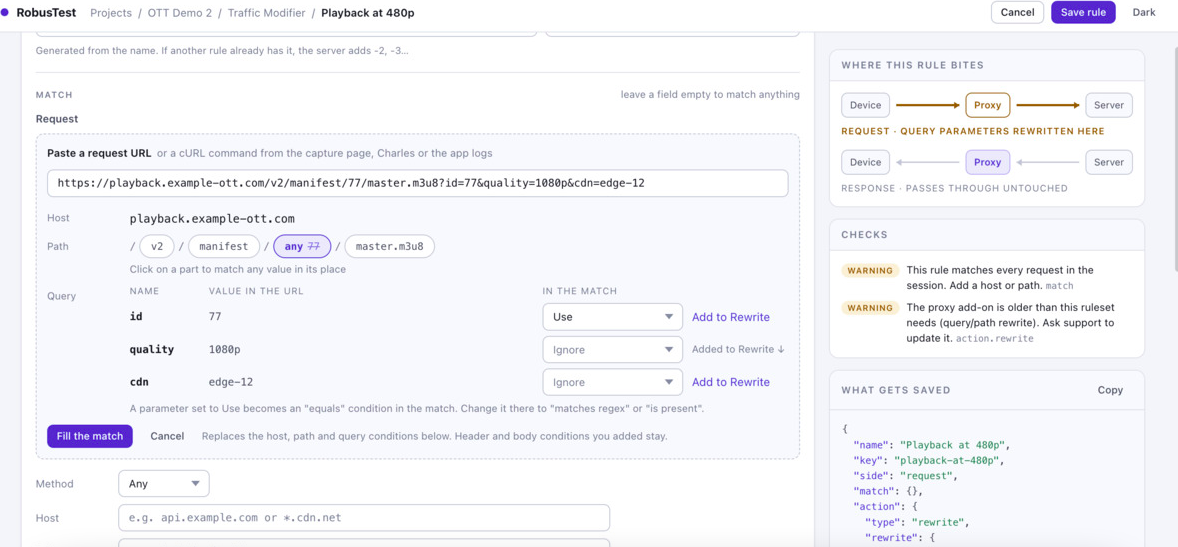
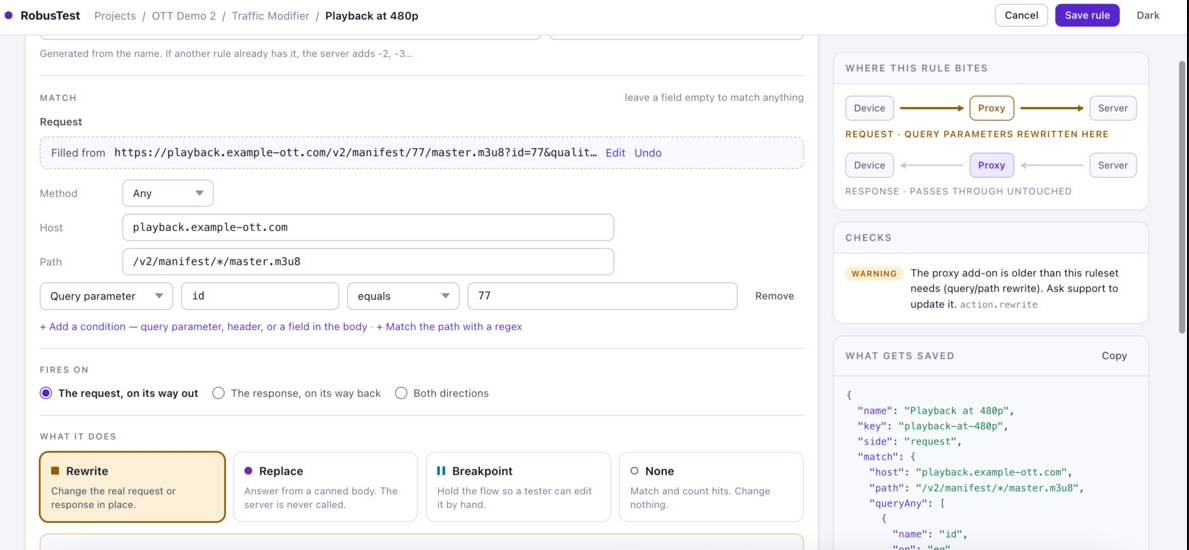
Instead of typing the match by hand, click Fill from a URL next to the Request label in the Match section. A box opens. Paste a request URL or a cURL command (from the Network view, Charles, or the app logs) and click Fill the match. Method, Host and Path each have their own line below. Cancel closes a new box.
- A preview shows the host, the path split into parts, and each query parameter with its value. The host, path and query conditions are filled in for you. Header and body conditions you added stay as they are.
- Each part of the path is shown as a button. Click on a part to match any value in its place, for example a user id that changes every time.
- Each query parameter has a menu with two choices: Ignore (the default) and Use. Use adds an equals condition for that parameter to the Match section, where you can change it to matches regex or is present. Ignore adds no condition. Choosing an option changes nothing on screen until you click Fill the match.
- If the rule's action is Rewrite, a parameter also has Add to Rewrite, which adds a query-parameter change for it. It adds a Modify row that matches the parameter's name with any value, so it never narrows the match. Once added, the note changes to Added to Rewrite ↓.
- From a cURL command only the URL is used. The headers and the request body are not imported, and the form tells you how many headers were left out.
- The pasted text is not saved. After Fill the match, the box folds to one line that shows what the match was filled from, with Edit and Undo.
- Edit reopens the box. Cancel after Edit goes back to the filled match and drops only the rewrite rows you added during that edit.
- Undo puts Host, Path and the query conditions back as they were before Fill the match, removes the rewrite rows added with Add to Rewrite, and closes the box so the Fill from a URL link shows again. Header and body conditions are not touched.
- The host must be a bare host name. A host with spaces is rejected.
Fires on: request or response?
| Choice | Meaning |
|---|---|
| The request, on its way out | The rule acts before the call reaches the server. |
| The response, on its way back | The rule acts before the app sees the answer. |
| Both directions | The rule can act on both. |
Some actions fix this for you: Replace always fires on the request (it answers before the server is called), and Breakpoint follows its Pause the flow setting. A Rewrite that changes the path or query parameters only works on the request, so it needs The request or Both directions.
What it does: the four actions
Rewrite — change the real traffic in place
The call still reaches the server (or the app); the rule changes what passes through.
| Setting | Details |
|---|---|
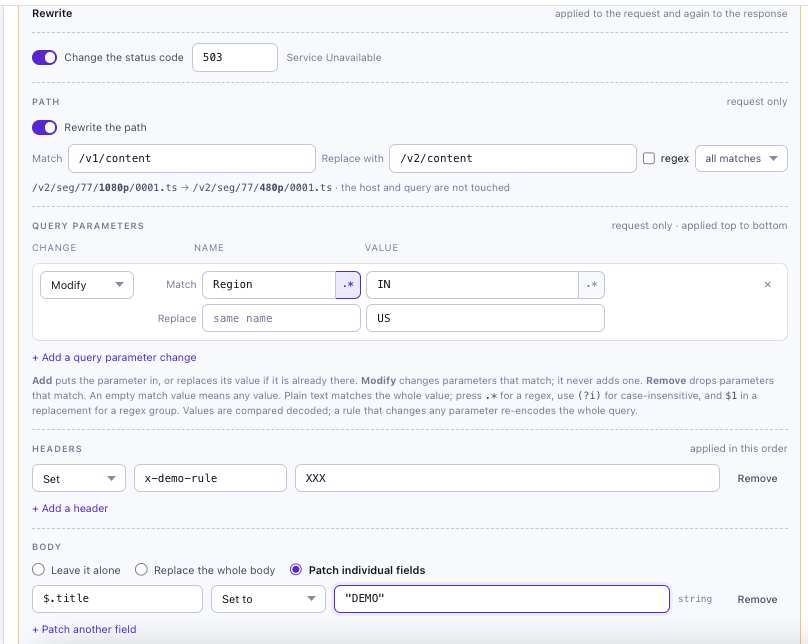
| Change the status code | A whole number from 100 to 599. Response only. |
| Headers | Add one row per change: Set (overwrite or create), Add (add another value), or Remove. Applied in the order shown. |
| Body | Leave it alone, Replace the whole body (type the new body as text), or Patch individual fields (see below). |
| Delay before it is returned | 0–30,000 ms. Response only. Good for simulating slow APIs. |
| Path | Rewrite part of the request path. Request only. See below. |
| Query parameters | Add, modify or remove query parameters. Request only. See below. |
Patching fields. Each patch row has a path and an operation:
| Operation | Effect |
|---|---|
| Set to | Sets the field to your value (creating it if missing). |
| Delete | Removes the field. |
| Merge into | Merges an object into an existing object field. |
Paths use the form $.user.tier and $.items[0].name. Wildcards aren't supported. Values are JSON: "text", 42, true, null, or an object; anything else is saved as text. Next to the value, a small tag shows the type the form detected (for example string). If the body isn't JSON, the patch is skipped.
Rewriting the path. Switch on Rewrite the path and fill in:
| Field | Details |
|---|---|
| Match | The text to find in the path. Plain text, or a regex if you tick regex. Required: if it's empty the form says "Enter the path text to match." |
| Replace with | The replacement. With a regex, $1 inserts the first group. |
| all matches / first match | Change every match in the path, or only the first. |
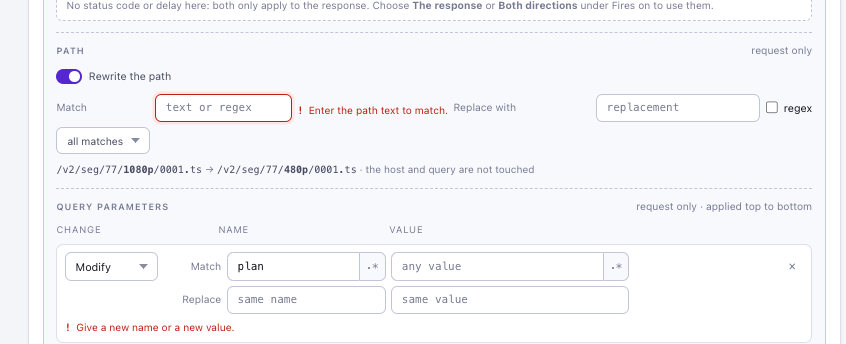
Only the path changes. The host and the query string are not touched, and a line under the fields shows an example of the change. For example, /v2/seg/77/1080p/0001.ts becomes /v2/seg/77/480p/0001.ts.
Rewriting query parameters. Click + Add a query parameter change for each change. Rows run from top to bottom.
| Row type | Effect |
|---|---|
| Add | Puts the parameter in. With replace if already present ticked (the default) it replaces the existing value. Otherwise a second parameter with the same name is appended. |
| Modify | Changes parameters that match. It never adds one. Give a new name, a new value, or both. If you leave both empty, the form says "Give a new name or a new value." |
| Remove | Drops the parameters that match. |
For Modify and Remove, the match is a name and an optional value. An empty value means any value. Plain text matches the whole value. Press the .* button next to a field to use a regex (add (?i) at the start to ignore case, and use $1 in a replacement to insert a regex group). Values are compared decoded. If a rule changes any parameter, the whole query string is re-encoded.
Note: On the request side there's no status code or delay (both only make sense for a response). To use them, set Fires on to The response or Both directions. In the same way, path and query changes only work on the request. If you save them on a rule that fires on the response only, the rule is rejected with "query and path changes apply to the request; set Fires on to request or both".
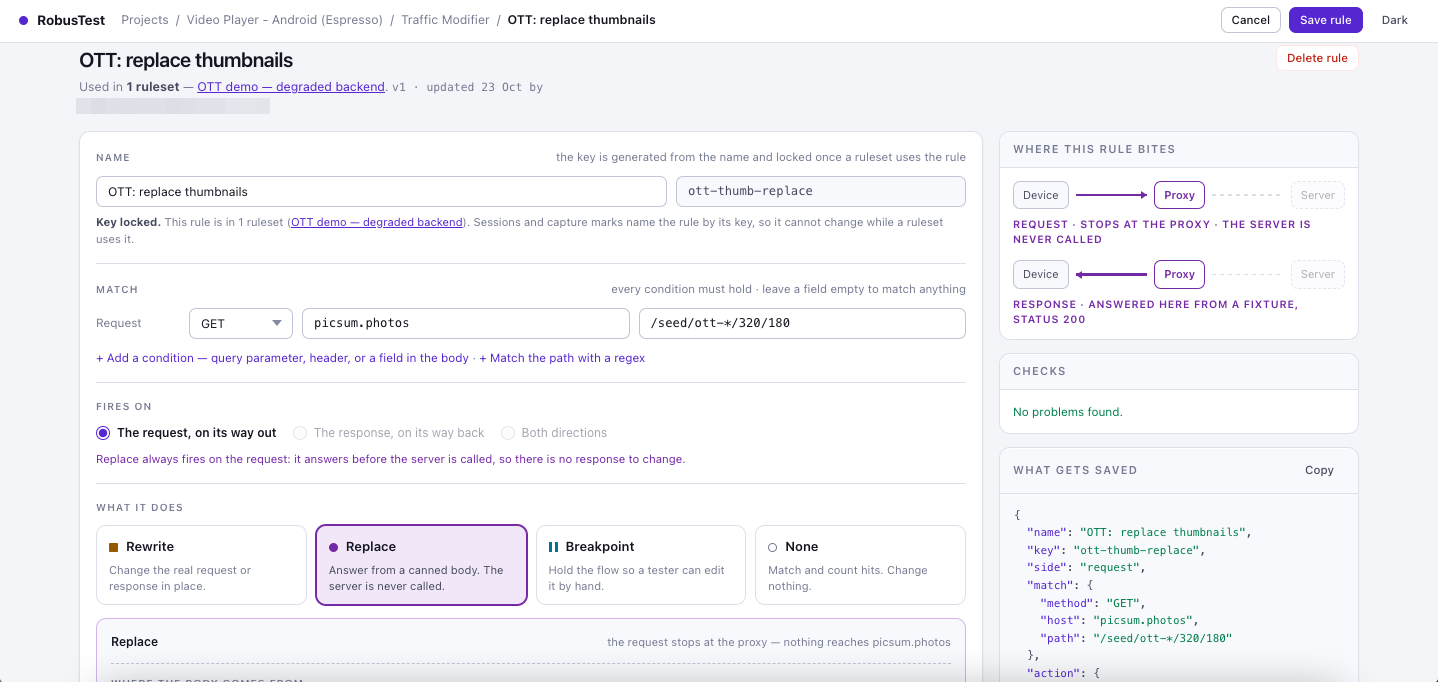
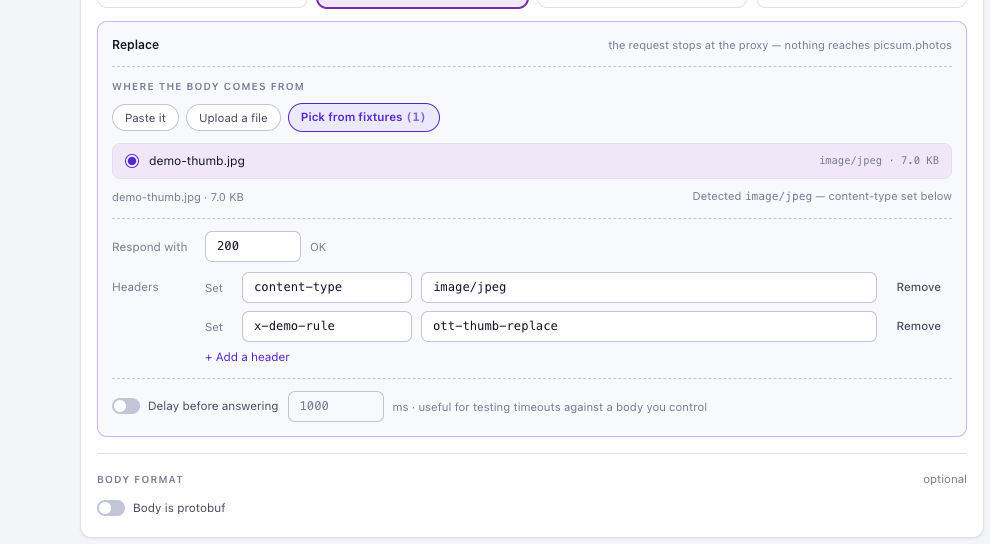
Replace — answer without calling the server
When the rule matches, the server is never called; the app receives the response you define.
| Setting | Details |
|---|---|
| Where the body comes from | Paste it (type or paste text, e.g. JSON), Upload a file (saved to the project's fixtures so other rules can reuse it; up to 5 MB, any type), or Pick from fixtures. |
| Respond with | Status code, 100–599 (default 200). |
| Headers | Headers to set on the response. Always include a content-type — a canned response has none of its own. The builder offers a one-click shortcut. |
| Delay before answering | 0–30,000 ms. Useful for testing timeouts against a body you control. |
Replace is exclusive on the request side: once a Replace rule answers a call, no later request-side rule runs for that call.
Breakpoint — pause the call so you can inspect or edit it
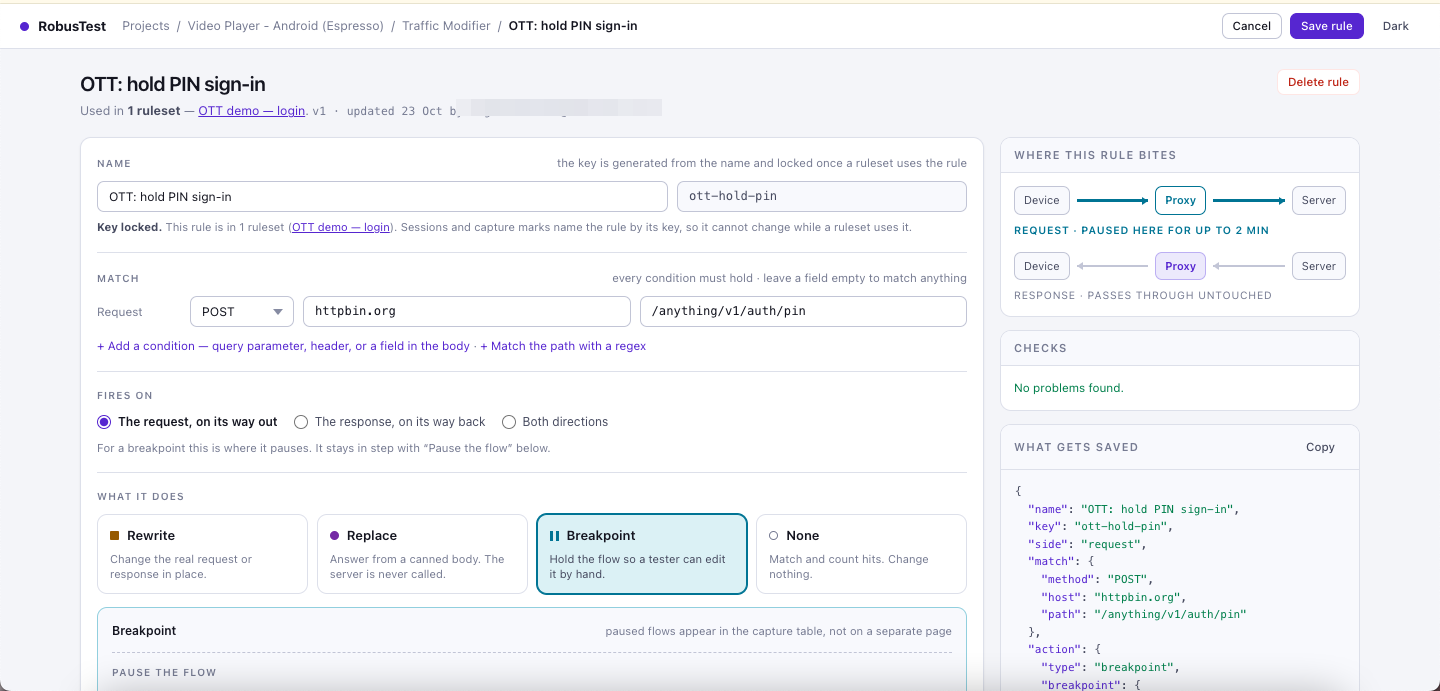
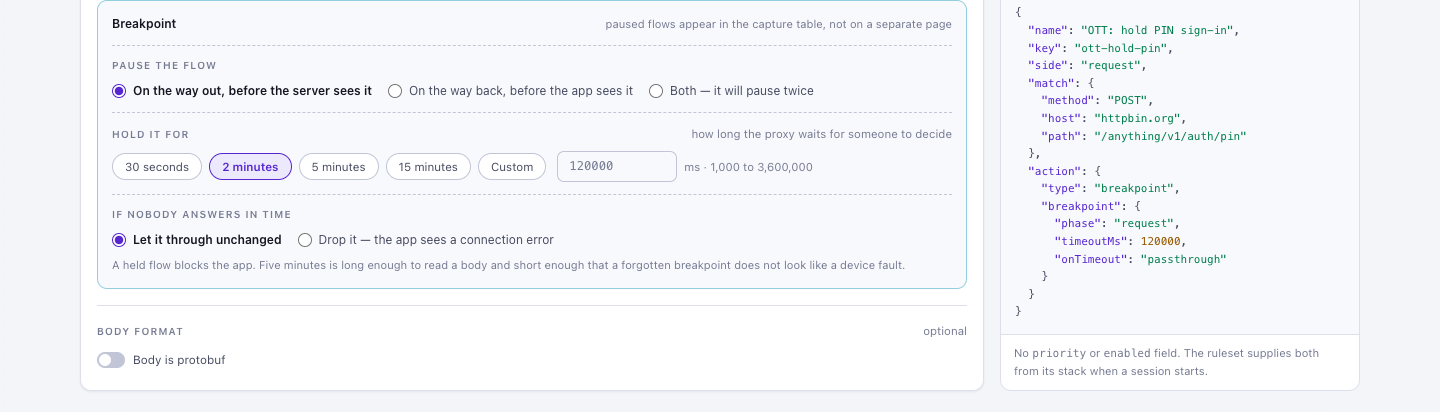
| Setting | Details |
|---|---|
| Pause the flow | On the way out (before the server sees it), On the way back (before the app sees it), or Both (it pauses twice). |
| Hold it for | How long the proxy waits for you: 30 seconds, 2 minutes, 5 minutes, 15 minutes, or a custom value from 1 second to 1 hour. |
| If nobody answers in time | Let it through unchanged, or Drop it (the app sees a connection error). |
While a call is held, the app waits — it will appear to hang. See Working with breakpoints.
None — match and count, change nothing
The rule matches and the hit is counted, but traffic passes through untouched. Matched calls still appear in the Network view, in grey. Use it to confirm a match pattern catches the calls you expect before attaching a real action, or to park a rule in a ruleset without removing it.
Protobuf bodies
If an API uses protobuf instead of JSON, switch on Body is protobuf at the bottom of the form and choose a Descriptor and Message type. The proxy decodes the body before matching and patching, then encodes it again. Upload descriptors first on the Descriptors tab (a compiled FileDescriptorSet, up to 5 MB). If a body can't be decoded, the rule falls back to matching on method, host, path and headers only, and records a warning against the rule.
Check and save
The right-hand panel helps you get it right before saving:
- Where this rule bites — a diagram of which direction the rule acts on.
- Checks — live errors and warnings (for example, "Set a content-type header" or "This rewrite changes nothing yet"). Errors must be fixed before you can save.
- What gets saved — the exact rule definition.
Errors (red) must be fixed before you can save. Warnings (amber) don't block saving, but are worth reading: the blank new rule above shows both an error (Give the rule a name) and a warning (This rewrite changes nothing yet).
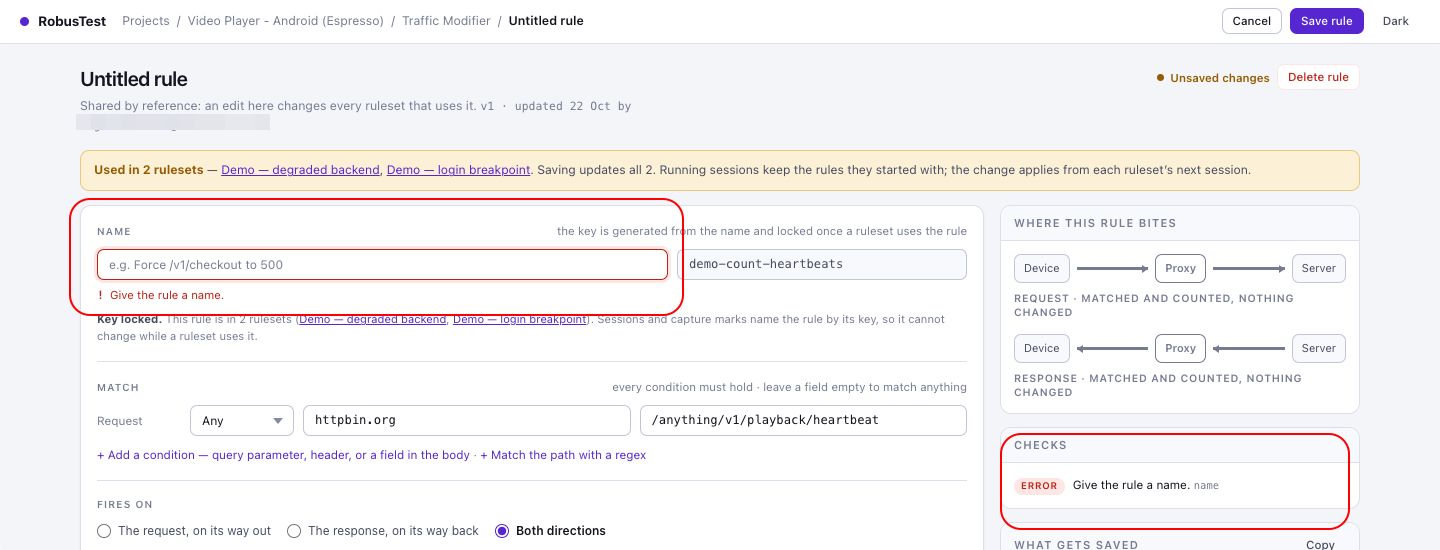
Click Save rule. A rule that isn't in any ruleset is a draft: it does nothing until you add it to a ruleset.
Editing and deleting rules
Open a rule from the Rules tab to edit it. Because rulesets reference rules rather than copying them, an edit changes the rule in every ruleset that uses it — from the next session on. When you open a rule that is used in rulesets, an amber banner lists them (for example, Used in 2 rulesets … Saving updates all 2), as in the screenshot above.
To delete a rule, first remove it from every ruleset that uses it; the library refuses the delete otherwise and tells you which rulesets to clean up.
3. Create a ruleset
From the Rulesets tab click New ruleset, enter a Name (for example, Checkout failure sweep) and an optional Description for the next person who picks it, then click Create ruleset.
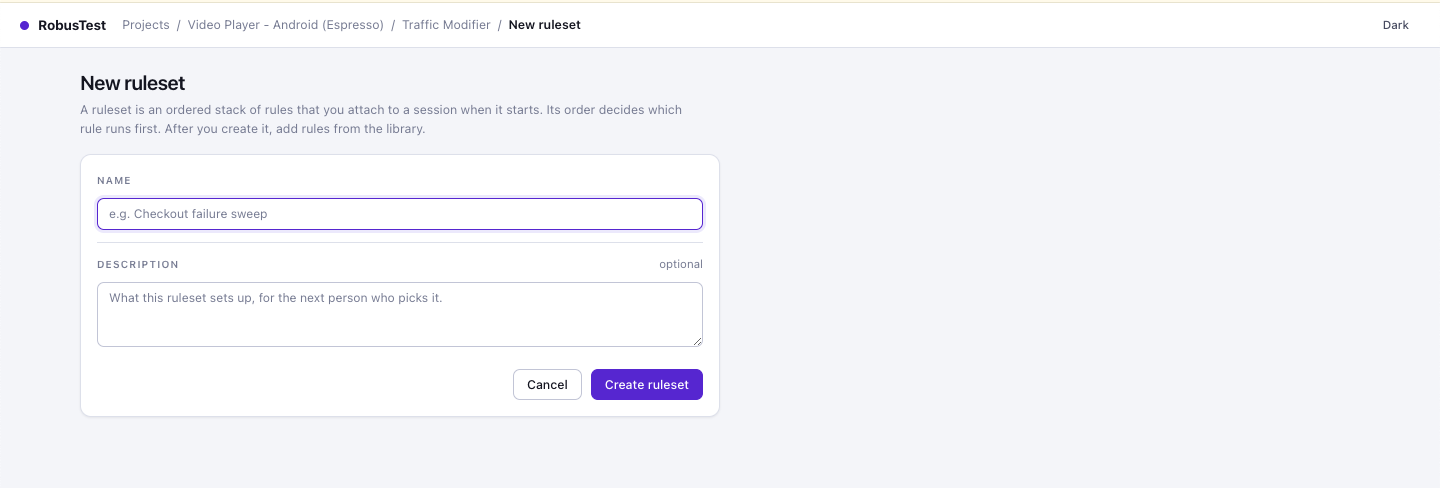
The new ruleset opens empty. Add rules from the library on the right: click the + next to a rule to add it to the bottom of the stack.
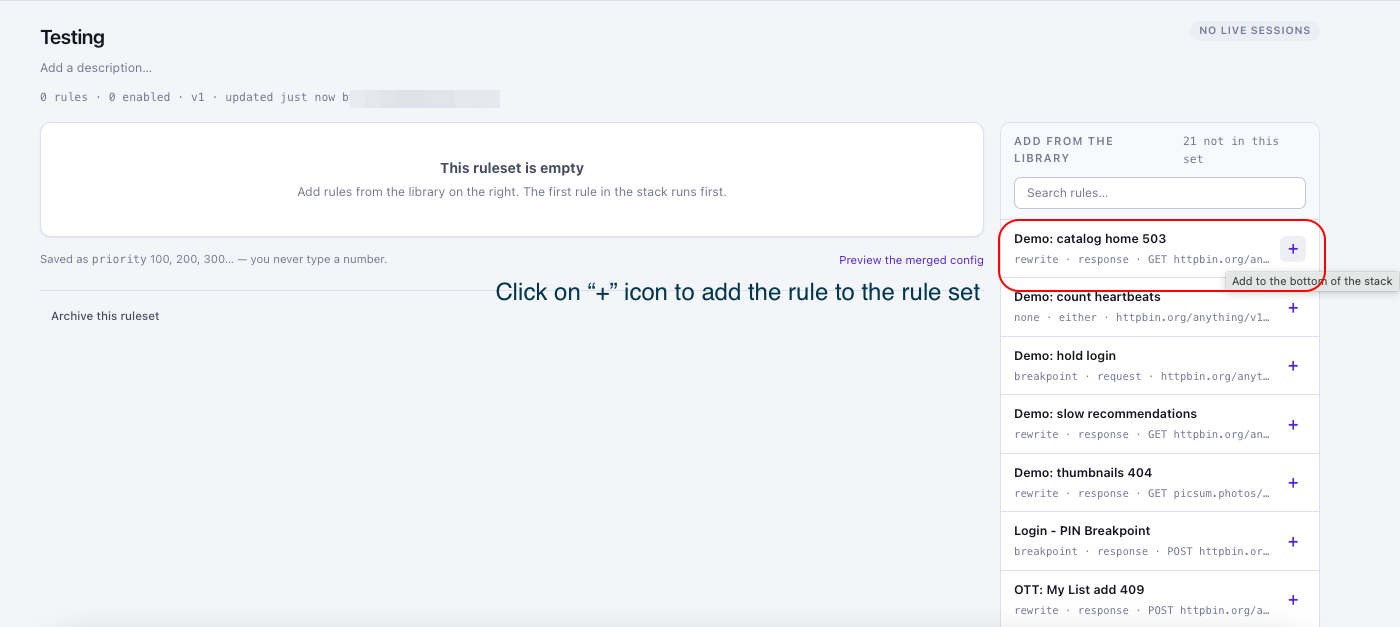
Build the stack
- Add from the library — search the panel on the right and click + to add a rule to the bottom of the stack. A rule can appear only once in a ruleset.
- Create a rule — if nothing in the library fits, click Create a rule in the panel. The new rule is saved to the library and added to the bottom of this ruleset.
- Reorder — drag rules by the grip, or use the ↑ / ↓ buttons. Order matters: the top rule runs first.
- Enable or disable — use the switch on each row. Disabling a rule here affects only this ruleset; other rulesets using the same rule keep it enabled.
- Remove — click × to take a rule out of this ruleset (it stays in the library).
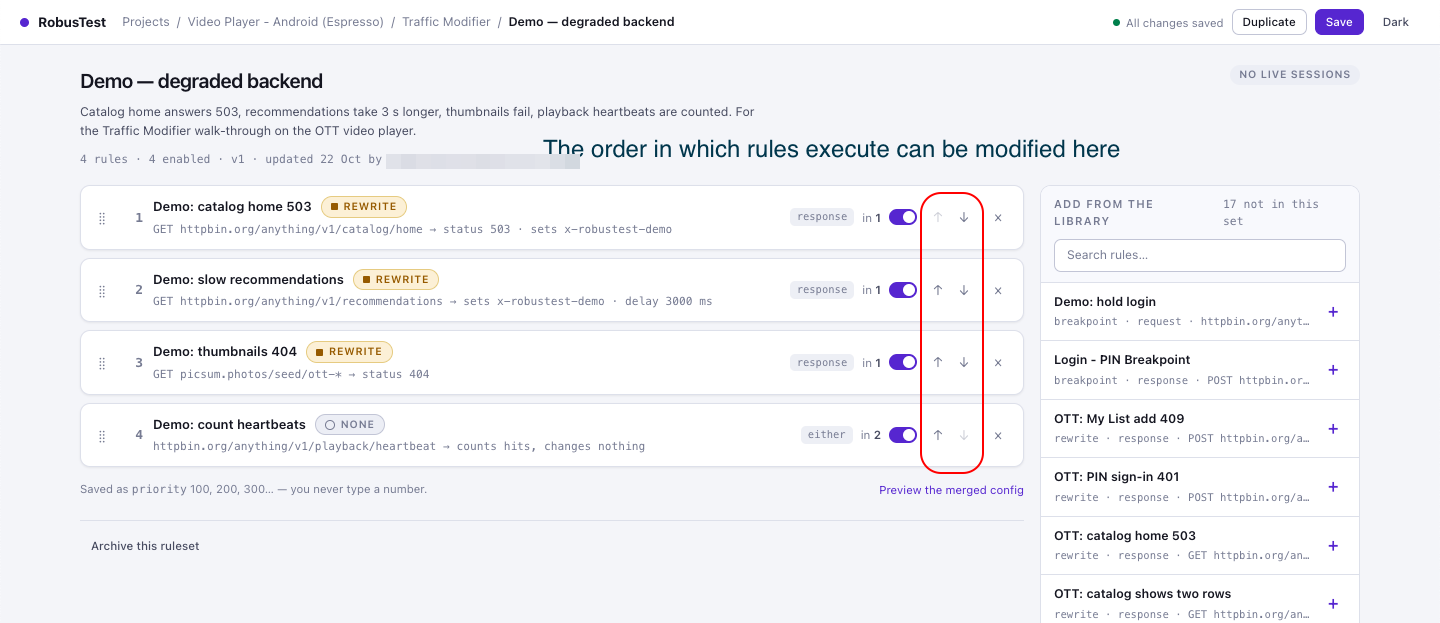
Each row shows the rule's position, its action (Rewrite, Replace, Breakpoint or None), a tag for the direction it fires on (request, response or either), and in N: how many rulesets use the rule. The first rule's ↑ and the last rule's ↓ are greyed out.
Click Save. If you leave with unsaved changes, the page asks first.
Heads-up notes on the stack
The ruleset page flags ordering problems as you build:
| Note | What it means |
|---|---|
| Shadowed / May be shadowed | A rule higher in the stack answers (Replace) or can drop (Breakpoint with Drop it) the same calls, so this rule never sees them. Move this rule above the other one if it needs to run. May be means a wildcard or regex makes the overlap uncertain. |
| Same path | A later rule patches the same body field on overlapping calls, so the later rule wins. Move this rule below it if its value should win. |
Preview, duplicate, archive
- Preview the merged config — shows exactly what a session will copy when it starts with this ruleset. Click Copy to copy it.
- Duplicate — copies the saved ruleset (not unsaved changes) so you can build a variation. The copy references the same rules.
- Archive this ruleset — removes it from the library so it can't be picked for new sessions. Running sessions aren't affected.
Saving a ruleset that's in use. If the ruleset is attached to live sessions, the page warns you before saving. Those sessions keep the rules they started with; your changes apply from the next session. If a teammate saved the ruleset while you were editing, your save is refused with "This ruleset was changed by someone else" — reload to see the latest version, then re-apply your edit.
4. Attach a ruleset to a session
- Select a device and start a manual session as usual.
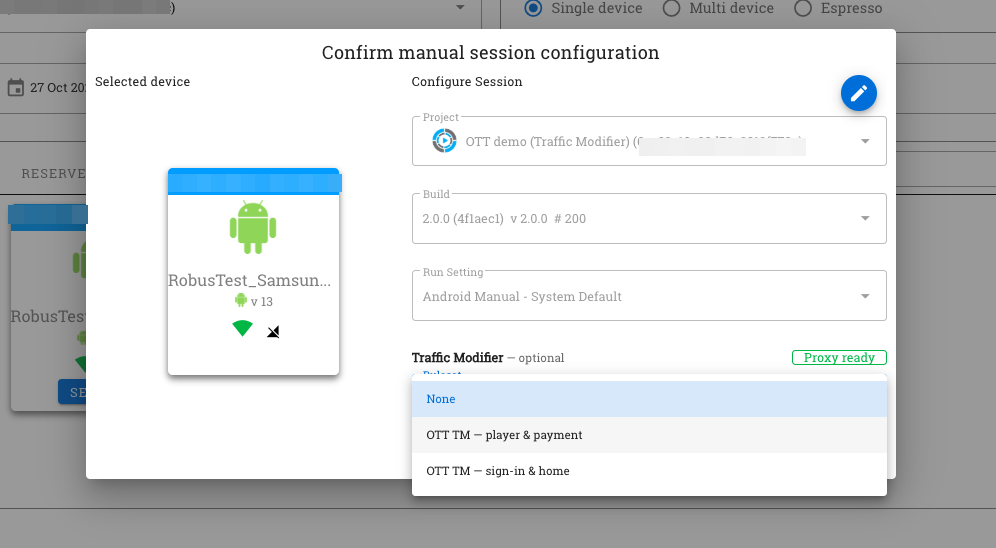
- In the start dialog, find Traffic Modifier — optional. (The ruleset picker is available only on devices that are Proxy ready. On other devices, this section says No traffic modification on this device.)
- Choose a Ruleset. The default is None.
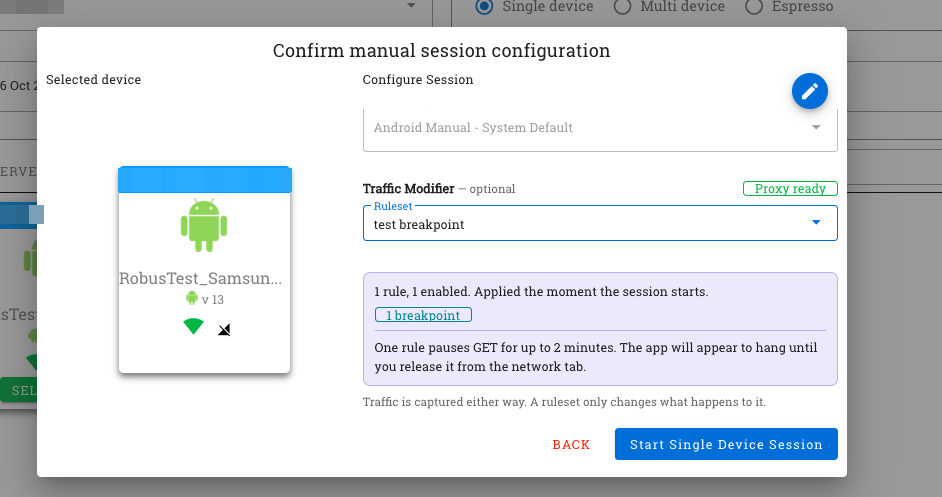
Once you choose a ruleset, the window shows a summary — how many rules it has, how many are enabled ("Applied the moment the session starts"), and a count of each action type. If the ruleset contains breakpoints, a warning tells you which calls will pause and for how long, for example:
One rule pauses POST /v1/checkout for up to 5 minutes. The app will appear to hang until you release it from the network tab.
Multi-device sessions. If you start a session on several devices at once, the ruleset is applied to each Proxy-ready device. Devices without a proxy are named in a note and run without it.
Traffic is captured either way. The ruleset only changes what happens to the traffic; the Network log records it whether or not you pick one.
If the ruleset couldn't be applied, the session still starts and a warning explains why (for example, the ruleset's rules were invalid or the proxy didn't confirm). Your session is never blocked by the Traffic Modifier.
Switching rulesets. A session runs one ruleset at a time. To change it, use Apply or Re-apply on the Network view (see Apply or re-apply a ruleset from the Network view in section 5), or start a new session with the other ruleset.
5. Verify the effect in the Network view
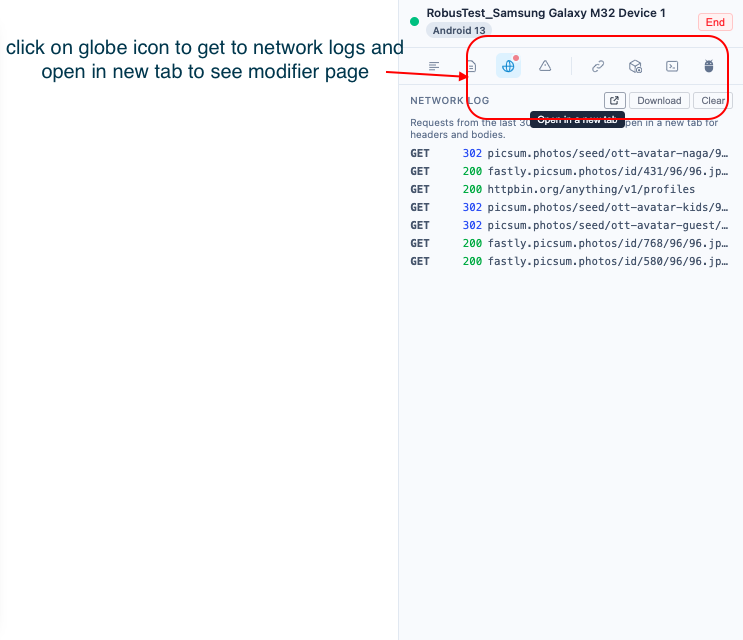
In your session, click the globe icon (Network Log) in the right-hand toolbar. Then click Open in a new tab to open the full Network view.
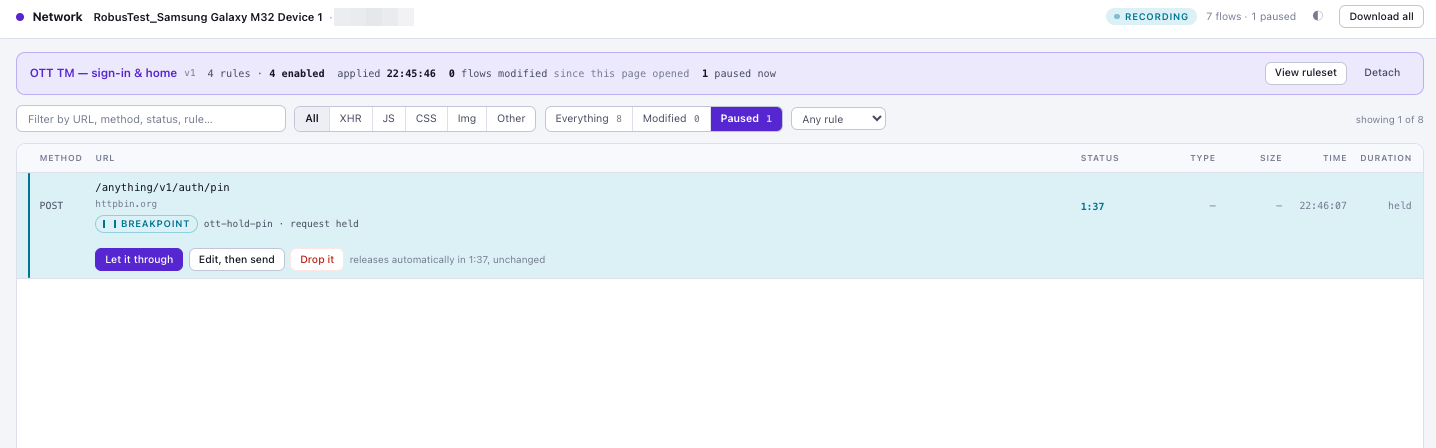
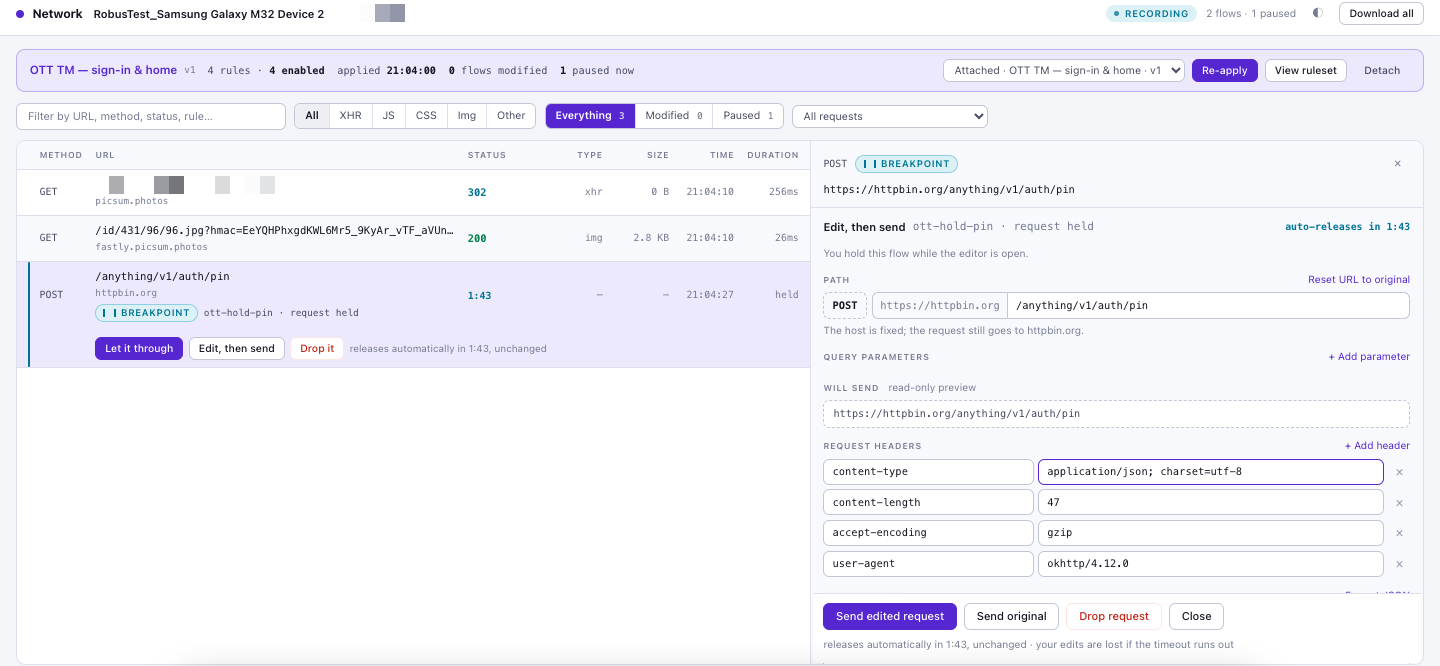
At the top of the Network view, a banner shows the attached ruleset and its version, how many rules are enabled, when it was applied, how many flows have been modified, and how many are paused now.
| Control | What it does |
|---|---|
| Everything / Modified / Paused | Show all traffic, only calls a rule changed, or only calls currently held by a breakpoint. |
| Rule dropdown | All requests, Any rule (every call a rule fired on), or one specific rule. |
| Filter box | Filter by URL, method, status — or rule name. |
| Row marks | Modified calls are marked by the kind of action that fired (rewrite, replace, breakpoint). Calls that matched a None rule are marked in grey. |
Click a modified call to open its detail. The What changed section lists, for each rule that fired, its position in the ruleset, the action and direction, and the concrete changes (status, headers, body patches, replaced body, added delay). For a Replace rule it shows Server sent: not called. If no rule matched, it says so.
When a rule or a breakpoint edit changed the path or query parameters, the detail also shows:
- Query parameters — each change marked modified (
name old → new), added or removed. - Path — the old and new path.
- URL — two lines, App asked for (the original URL) and Server got (the URL that was sent), with the changed parts highlighted. The original URL is worked out by undoing the recorded changes, so it can be approximate when a value was masked or a parameter name repeats.
View ruleset on the banner opens the ruleset page.
Apply or re-apply a ruleset from the Network view
You don't have to choose a ruleset when the session starts. While the session is running, the banner has a ruleset picker.
| Situation | What the banner shows |
|---|---|
| No ruleset attached | No ruleset attached — Flows pass through unmodified, with the picker. Choose a ruleset and click Apply. |
| A ruleset is attached | The picker lists the project's rulesets and marks the current one Attached. Choose another ruleset and click Apply to switch, or leave the current one selected and click Re-apply to take its latest version. |

Before applying, you're asked to confirm. New calls use the ruleset's latest version straight away. Requests already in progress, or paused at a breakpoint, finish with the rules they started with, and flows already modified keep their marks. The picker isn't shown once the session has ended.
The banner also tells you when the session's copy is out of date:
- "Ruleset changed since this session started (v2 → v3) — Re-apply to use the latest version."
- "A rule in this ruleset changed since this session started — Re-apply to use it." (or "3 rules … Re-apply to use them."). Editing a rule doesn't change the ruleset's version, so this note covers that case.
If the proxy add-on can't take the ruleset, the banner shows "Not applied by the proxy add-on: …" with the reason. See Troubleshooting.
Detach. Click Detach on the banner to stop modifying traffic. New calls pass through untouched; calls already modified keep their marks. The banner then shows No ruleset attached, and you can pick a ruleset and click Apply to start modifying traffic again.
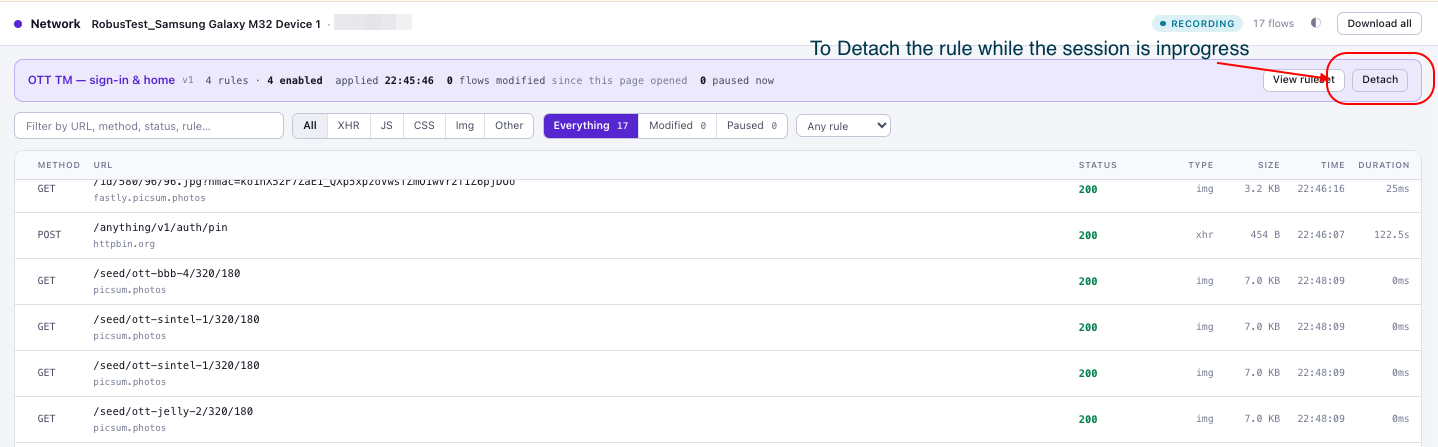
You're asked to confirm before the ruleset is detached.
Ruleset changed notice. If someone edits the ruleset after your session started, the banner shows "Ruleset changed since this session started (v2 → v3) — changes apply from the next session." Your session keeps running on the version it started with.
Large bodies and media. To keep the device fast, the proxy doesn't store every body. Media (video, audio, images, fonts), binary downloads, and bodies over 256 KB are streamed to the device as they arrive and are not recorded. The Network view shows "body not recorded (media, streamed or too large)" in the body pane instead. Calls that your ruleset applies to are not streamed. They keep their body, because a rule may need to read or change it, and a breakpoint may hold it.
When the session ends, the modifier is cleared automatically. Download all in the Network view still has the full traffic for the session.
Working with breakpoints
A call held by a Breakpoint rule appears in the Paused view with a countdown to automatic release.
Each paused call shows its buttons on the row, with a countdown (for example, releases automatically in 1:37, unchanged). Select the call to inspect its request and response before you decide:
| Button | Effect |
|---|---|
| Let it through | Release the call unchanged. |
| Edit, then send | Edit and send. For a request breakpoint you can change the path, the query parameters, the request headers and the body. The method and host are shown but can't be edited. For a response breakpoint you can change the status, headers and body of the response. Format JSON tidies a JSON body. |
| Drop it | Discard the call. The app sees a connection failure. (You're asked to confirm.) |
What to expect:
- Editing the URL at a request breakpoint. The editor shows the path and a table of query parameters (change a value, rename, remove, or + Add parameter). A Will send preview shows the final URL, and a counter shows how many parameters you changed, added or removed. Reset URL to original undoes your URL edits. The host is fixed: the request still goes to the same server.
- Buttons in the editor. Send edited request (or Send edited response) sends your changes. Send original sends the call as it was held. Drop (or Drop request) discards it. Close leaves the editor without sending, so the call stays held.
- Each hold has its own settings. A paused call keeps the hold time and the "if nobody answers" action of the rule that paused it, and shows which phase (request or response) it is held at and what happens on timeout. With Both, the two holds are shown separately.
- After you release. A message names what was sent: the method and the path with query, using your edited URL if you changed it. Under What changed, each breakpoint hold shows the phase it was held on and how it ended.
- Later rules still run. After you release a call (with or without edits), any rules lower in the ruleset keep evaluating the call, using your edited version. If you drop it, the call ends there.
- The clock keeps running. If nobody acts before the hold time expires, the call is released as the rule specifies — Let it through or Drop it. If your edit arrives too late, you're told your edits weren't sent.
- Teammates. If a colleague is already editing a paused call, the detail panel shows who, so you don't overwrite each other's edits.
- Detaching releases everything. Detaching the ruleset releases any held calls so the device doesn't hang.
Tip: A forgotten breakpoint makes the app look broken. Keep hold times short — 5 minutes or less is usually plenty — and prefer Let it through unchanged as the timeout action unless you are specifically testing a dropped connection.
Changing rules while testing
A session runs on a frozen copy of the ruleset taken when the session started (or last applied). This is deliberate: it keeps a test reproducible, and nobody's edit can change a session someone else is running by accident.
| You do this | A running session | Your next session |
|---|---|---|
| Edit a rule | Unaffected until you Re-apply | Uses the edit |
| Edit or reorder a ruleset | Unaffected until you Re-apply | Uses the edit |
| Archive a ruleset | Unaffected | Can't pick it |
| Re-apply or Apply another ruleset (Network view) | New calls use it | — |
| Detach | Stops modifying new traffic | — |
To iterate quickly on a rule: edit it, open the session's Network view, and click Re-apply. No new session is needed. If you need to experiment inside one call, use a Breakpoint rule and edit the call by hand.
Fixtures and descriptors
Fixtures and Descriptors are project files that rules reference.
- Add a file — open the tab and drag a file onto the drop area, or click choose a file. Files can be up to 5 MB. Fixtures can be any type (JSON bodies, playlists, images, video segments). A descriptor must be a compiled protobuf
FileDescriptorSet; its message types are listed after upload. - See what uses a file — the Used by column lists the rules that reference it.
- Delete a file — only possible when no rule uses it. Files in use show a Still in use notice naming the rules.
Worked examples
Each example lists what to enter in the rule builder.
1. Force a server error
| Field | Value |
|---|---|
| Match | Method POST · host api.example.com · path /v1/checkout |
| Fires on | The response |
| Action | Rewrite → Change the status code 500 · Body: Replace the whole body {"error":"Payment service unavailable"} · Header: Set, name content-type, value application/json |
2. Change one field in a real response
| Field | Value |
|---|---|
| Match | Method GET · host api.example.com · path /v1/user/profile |
| Fires on | The response |
| Action | Rewrite → Body: Patch individual fields → path $.user.tier, Set to "premium" |
3. Serve a canned response from a new endpoint
| Field | Value |
|---|---|
| Match | Method GET · host api.example.com · path /v1/config |
| Fires on | The request (fixed for Replace) |
| Action | Replace → Paste it: {"featureFlags":{"newCheckout":true}} · Respond with 200 · Header: Set, name content-type, value application/json |
4. Simulate slow image loading
| Field | Value |
|---|---|
| Match | Host *.cdn.example.net · Path regex \.(jpg|png|webp)$ |
| Fires on | The response |
| Action | Rewrite → Delay before it is returned 2000 ms |
5. Break only one app version
| Field | Value |
|---|---|
| Match | Host api.example.com · path /v1/orders · condition: Header x-app-version matches regex ^25\. |
| Fires on | The response |
| Action | Rewrite → Change the status code 503 |
Calls from other app versions pass through untouched. Header conditions always read the request headers, even when the rule fires on the response.
6. Pause and hand-edit a call
| Field | Value |
|---|---|
| Match | Host api.example.com · path /v1/checkout |
| Fires on | The response (follows Pause the flow) |
| Action | Breakpoint → On the way back · hold 5 minutes · Let it through unchanged |
Then open Paused in the Network view, select the call, and use Edit, then send.
7. Change a query parameter
| Field | Value |
|---|---|
| Match | Method GET · host api.example.com · path /v1/products |
| Fires on | The request |
| Action | Rewrite → + Add a query parameter change → Modify · match name limit · replace value 1 |
The app asks for ?limit=50 and the server receives ?limit=1. In the Network view, What changed shows the App asked for and Server got URLs.
8. Ask for a lower video quality
| Field | Value |
|---|---|
| Match | Host cdn.example.com · Path regex /seg/.*\.ts$ |
| Fires on | The request |
| Action | Rewrite → Rewrite the path → Match 1080p · Replace with 480p · all matches |
/v2/seg/77/1080p/0001.ts becomes /v2/seg/77/480p/0001.ts. The host and query string are unchanged.
How rules are evaluated
When the device makes a call, the proxy checks the session's rules top to bottom, separately for the request and for the response:
- A rule is skipped if it is disabled, fires on the other direction, or its match doesn't hold.
- Rewrite rules apply and evaluation continues to the next rule. Path and query changes are made on the request pass only. Several rewrites on one call stack up; if two change the same header or body field, the later rule wins.
- A Replace rule answers the call and stops the remaining request-side rules for it.
- A Breakpoint rule pauses the call. After release, evaluation continues on the (possibly edited) call. If dropped, the call ends.
- A None rule records a match and continues.
Rules that match nothing leave the call untouched — traffic is never blocked just because a rule didn't match.
Limits
| Item | Limit |
|---|---|
| Rules per ruleset | 200 |
| Rule key | Letters, digits, -, _ · up to 64 characters |
| Delay (Rewrite or Replace) | 0–30,000 ms |
| Breakpoint hold time | 1 second – 1 hour |
| Status codes | 100–599 |
| Fixture or descriptor file size | 5 MB |
| Each rule in a ruleset | Appears once |
Troubleshooting
| Symptom | Likely cause and fix |
|---|---|
| "No traffic modification on this device" in the start window | The device has no proxy recorded, so it isn't Proxy ready. Pick a Proxy-ready device, or ask an administrator to record the device's proxy in its Settings tab. |
| The dialog says "No rulesets in this project yet" | Create one in the Traffic Modifier library. |
| Session started but the ruleset wasn't applied | Read the warning shown at start. Common causes: a rule in the ruleset is invalid, or the proxy didn't respond. Fix the cause, then start a new session with the ruleset. |
| Rule never fires | Check the rule is in a ruleset and its switch is on; the ruleset was attached (banner visible); Fires on matches the direction you expect; and the host is a bare name (no https://). Temporarily set the action to None and watch the Network view's grey marks to confirm the match. |
| Rule fires on a browser but not in your app | The app may pin certificates or ignore the device proxy. See Before you start. |
| Body-field condition never matches | The body must be JSON. equals compares text, so use matches regex for numeric fields. |
| Query or path change doesn't happen | Fires on must be The request or Both directions. A rule that fires on the response only can't change the URL. |
| "The proxy add-on is older than this ruleset needs (query/path rewrite). Ask support to update it." | The ruleset has a rule that uses the All of these query mode, a query-parameter change, or a path change, and the proxy add-on hasn't been updated yet. The ruleset isn't applied, and the rule editor shows the same message as a warning. Ask support to update the proxy add-on (version 1.2.0 or later). Rules that don't use these features are not affected. |
| "Not applied by the proxy add-on: …" in the Network view banner | The add-on refused the ruleset when it was applied or refreshed. Read the reason, fix it, then click Re-apply. |
| Body shows "body not recorded" | Expected for media, streamed downloads and bodies over 256 KB. See Large bodies and media in section 5. |
| Another rule overrides my change | Look for Shadowed or Same path notes on the ruleset, and reorder. |
| The app hangs | A Breakpoint is holding a call. Open Paused and release it, or Detach. |
| "This ruleset was changed by someone else" | A teammate saved first. Reload the ruleset and re-apply your edit. |
| "Remove the rule from these rulesets first" | The rule is still used. Remove it from the listed rulesets, then delete it. |
| Edits don't show in my running session | Expected — sessions run on a copy. Open the Network view and click Re-apply, or start a new session. |
Related Documentation
- Manual Session — starting and using a manual session