
Start with Remote ADB
Overview
If you only need a remote ADB connection to a lab Android device, you can get the adb connect command straight from the start-session page. You do not need to open the session page and look for the Remote ADB tool.
Start with Remote ADB starts the same single-device manual session as Start Single Device Session. It is not a new session type. The session appears in session lists, reports and device status like any other manual session.
The only difference is what happens after the session starts:
| Button | After the session starts |
|---|---|
| Start Single Device Session | Opens the session page with the device screen |
| Start with Remote ADB | Shows a Remote ADB dialog with the adb connect command. The session page is not opened automatically, but you can open it at any time |
You choose how to use the session:
- ADB only: Run the
adb connectcommand, work from your computer, and never open the device screen. - ADB together with the manual session: Click Open screen in the dialog to open the session page in a new tab. You can use the device screen and tools while your ADB connection stays active. The session page can be opened at any time while the session is running.
Either way it is the same session, on the same device.
When the Button Is Shown
The Start with Remote ADB button appears next to Start Single Device Session only when all of these are true:
- The session type is Single device, with one device selected.
- The selected device is an Android device. This includes phones, tablets, Android TV, boxes, set-top boxes and Android emulators.
- The project is an Android app, Web or Device Only project.
If any of these is not true, the button is not shown. It is not shown for:
- Multi device sessions, Espresso, XCUITest and XCTest sessions, or their re-runs.
- iOS, Roku, webOS, Tizen, Vega, television and API projects.
- iPhone, iPad, Apple TV, Roku, LG, Samsung, Fire TV and desktop browser devices.
The button is enabled exactly when Start Single Device Session is enabled. It adds no extra rules of its own. If you can start a session without a build on the start page, you can do the same with this button.
Starting a Session with Remote ADB
Step 1: Follow the normal steps to start a manual session. Select the project, choose Single device, select an Android device and click Next.
Step 2: On the Confirm manual session configuration screen, review the build, run settings and any Traffic Modifier ruleset.
Step 3: Click Start with Remote ADB, to the left of Start Single Device Session.
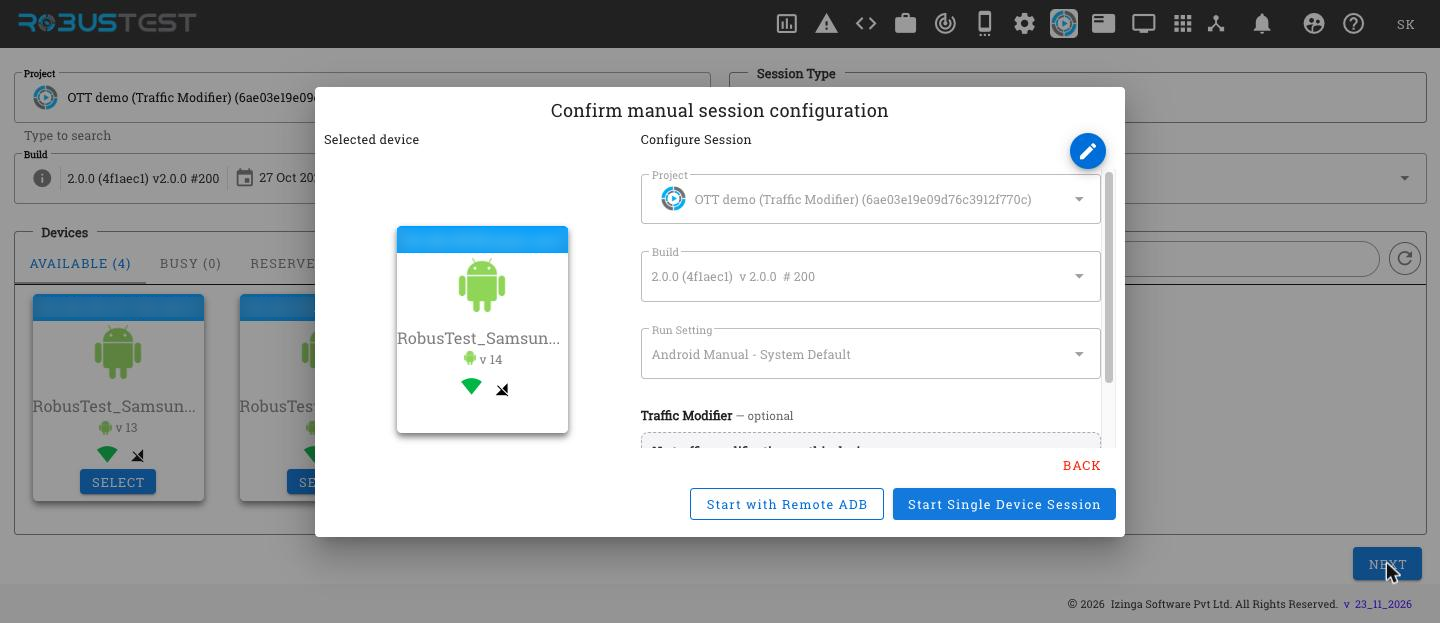
The button shows a loading indicator and both start buttons are disabled until the session has started. If the session cannot be started, you see the same error message as when you start a normal session.
The Remote ADB Dialog
After the session starts, the Remote ADB dialog opens. It shows the device name and model, for example Pixel 8 · Android 15. The dialog does not close when you click outside it. Use its buttons or press Esc.
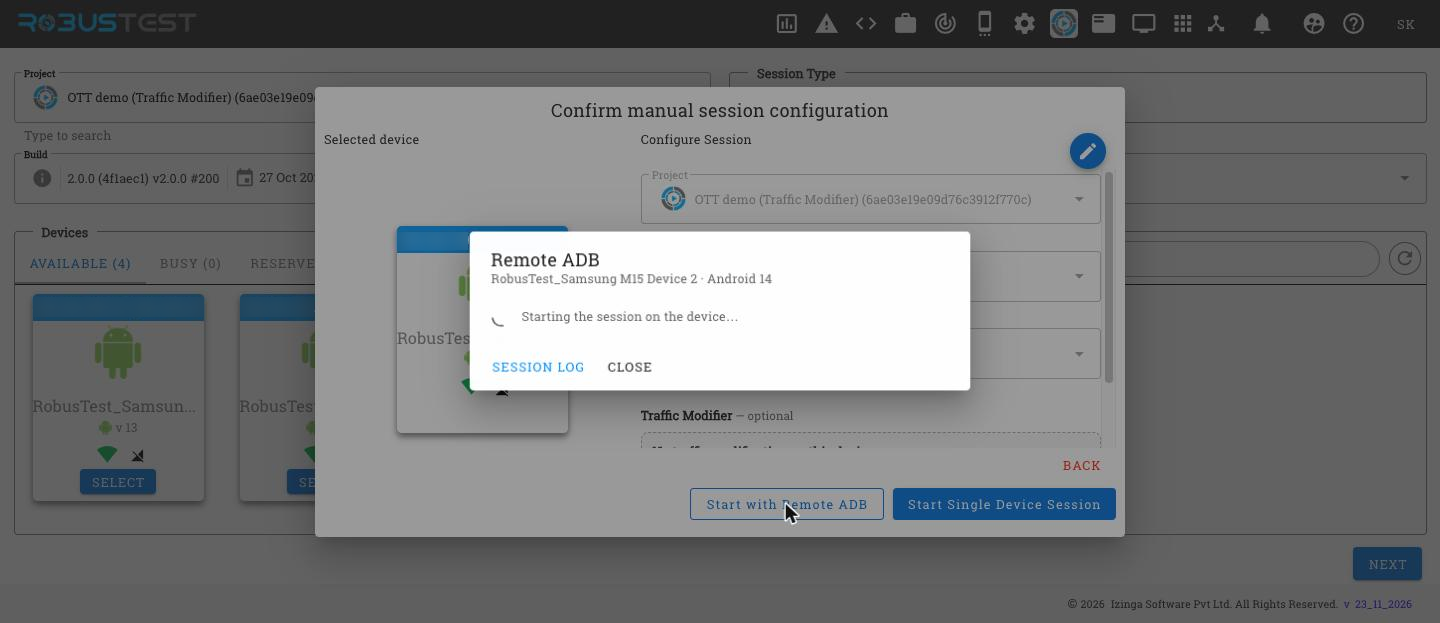
While the Session Is Starting
The dialog shows Starting the session on the device… while the device is being prepared. Click Session log to watch the start.
When It Is Ready
When the device is ready, the dialog shows the command to run on your computer:
adb connect <host>:<port>
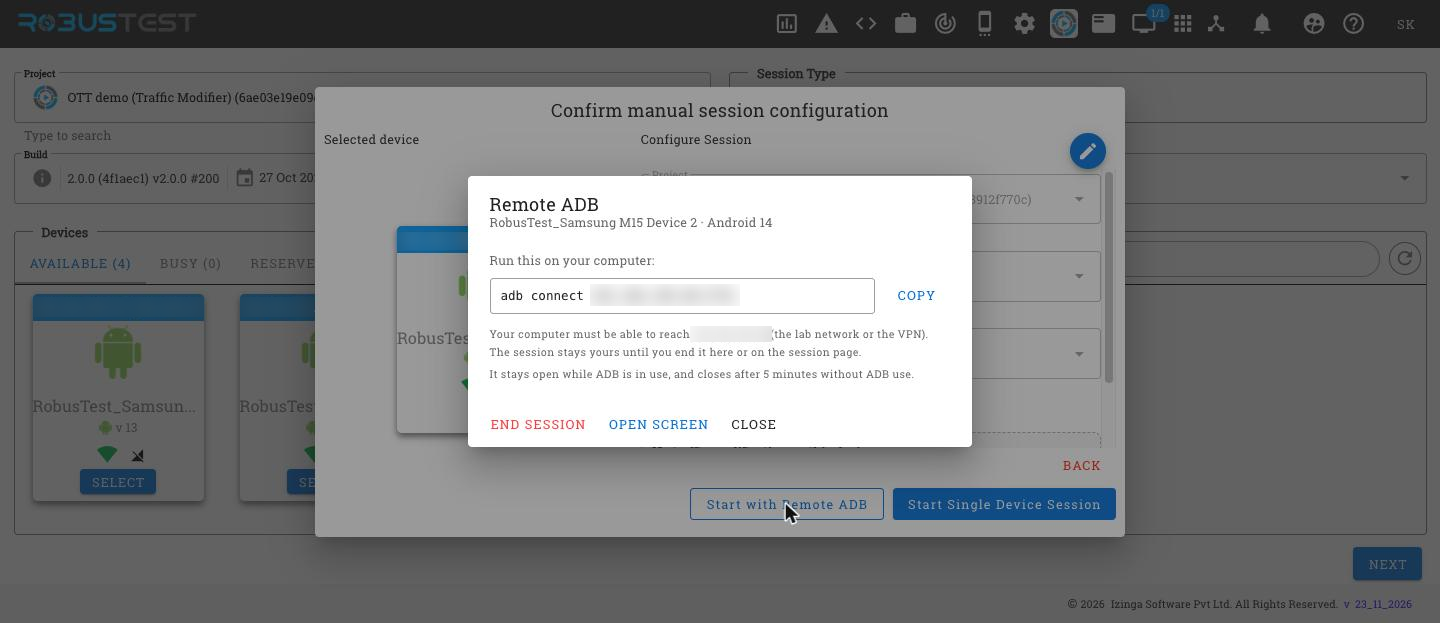
- Click Copy. The button reads Copied for 2 seconds.
- Paste the command into a terminal on your computer and run it.
- Run
adb devicesto check that the device is listed.
Note: Your computer must be able to reach the host in the command, either through the lab network or the VPN.
Dialog Buttons
| Button | What it does |
|---|---|
| Copy | Copies the adb connect command |
| End session | Asks End the session on <device name>? Your ADB connection will stop. Click End to end the session and release the device, or Cancel to keep it |
| Open screen | Opens the session page of this same session in a new tab. The start page and the dialog stay where they are. If your browser blocks the new tab, click the Open the session link shown in the dialog |
| Close | Closes the dialog. The session keeps running and the device stays in use. Your ADB connection keeps working |
| Session log | Opens the session log so you can follow the start-up or see why the session is slow to start. Shown only while the session is starting, or if it takes longer than 2 minutes |
Tip: The same command is also in the Remote ADB tool on the session page. Click Open screen to reach it.
Session Idle Timeout
Remote ADB use counts as session activity. While you use ADB, the session is not closed as idle.
- Running a command and receiving its output counts as use.
- Android Studio left open and untouched, or a log stream on its own, does not keep the session open.
- The session is closed after a set time without ADB use. The default is 30 minutes, plus a short grace period of about 1 minute. Your administrator can change this time, and the dialog always shows the number of minutes set for your lab.
Ending the session from the session page while a computer is connected shows a warning that the Remote ADB connection will also close.
If Something Goes Wrong
| What you see | What it means | What to do |
|---|---|---|
| The session hasn't finished starting. Open the session log to see why, or open the screen. | The device was not ready after 2 minutes | Click Session log to see why, Open screen, or End session to release the device |
| Remote ADB isn't available for this device. | The device did not provide a Remote ADB port | Click Open screen to use the session, or End session |
| The session has ended. | The session was ended or closed while the dialog was open | Click Close |
| Couldn't read the session's state: … | The page could not get the session status three times in a row | Click Retry, or Open screen |
Notes
- Start Single Device Session works exactly as before and still opens the session page.
- Use Start with Remote ADB for quick ADB access. For the full device screen and tools, use Manual Session.
- Traffic Modifier works with this button. The ruleset you choose is applied as it is for a normal session. See Traffic Modifier.
Requirements
This feature needs the latest RobusTest release. For self-hosted labs, the nerve binary, the neuron binary and the UI build must all be upgraded. With an older neuron, sessions behave as before and ADB use does not extend the session.